Keep Ollama running on a MacBook
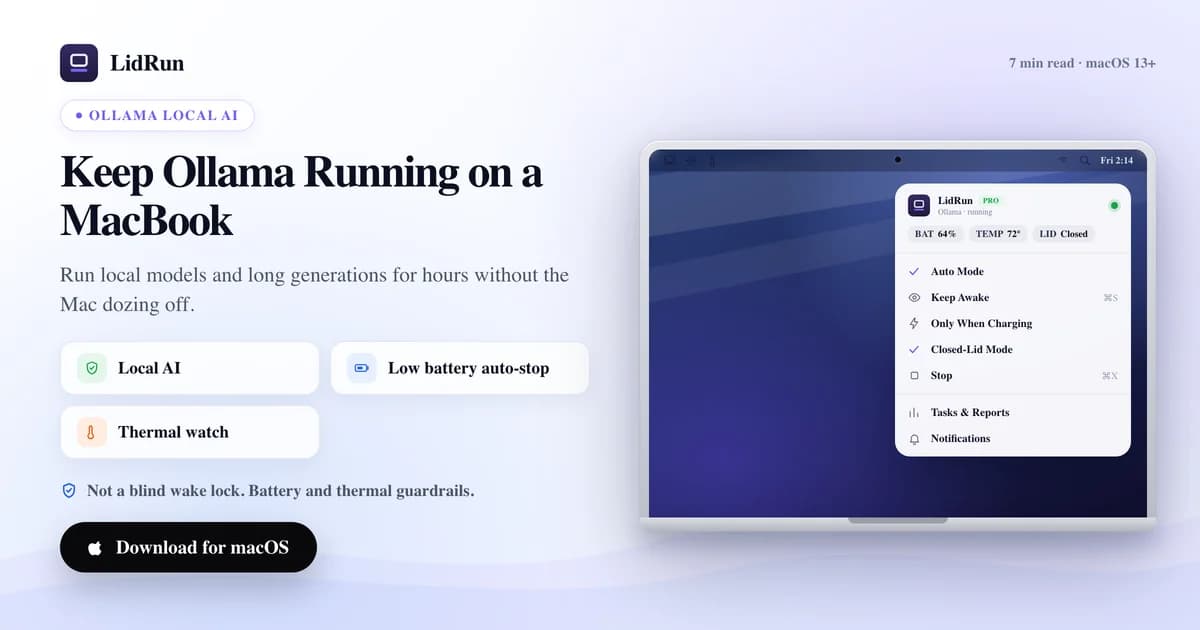
Running a local model with Ollama can take a while, and a Mac that sleeps mid-run interrupts it. Overnight batch runs and long unattended generations are where that interruption costs the most. Here is how to keep Ollama running on a MacBook, lid-closed if needed, while safety thresholds decide when to stop.
Why Ollama runs get cut off
Ollama serves models locally, so it runs as a process on your Mac. When the Mac sleeps from idle or a closed lid, that process is suspended along with everything else.
A long generation or a model download stops where it was, and you come back to a session that stalled.
Keeping inference alive without straining the Mac
LidRun detects Ollama and holds the Mac awake while it runs, so you can close the lid and let a long generation or a model pull finish. Beyond Ollama, it can keep your Mac awake for AI/dev workloads like Claude Code, Cursor, and Docker too.
Local models are demanding on both memory and heat. A larger model can sit resident in RAM and keep the GPU busy, which is real sustained load, so battery and thermal thresholds gate the whole session.
If thermal pressure climbs or charge drops past your limits, LidRun lets the Mac sleep instead of pushing the hardware. The activity log records why a session ended, so a stalled overnight run is never a mystery in the morning.
Related guideWhen your MacBook gets hot while codingOvernight runs and when it is worth it
This earns its place for the long stuff: a big model download, a batch of generations, or a model server you want to leave running while you step away.
If you are chatting with a small model interactively, you do not need it — the Mac stays awake while you type. Quick one-off prompts finish before idle sleep would ever trigger.
But if you have kept the lid open just so Ollama keeps serving while you step away, that is what LidRun is built for — worth trying for any unattended local model run.
Overnight is its own scenario. Local model inference running for four to eight hours while you sleep is fully unattended — no one there to notice a thermal spike or a battery drop. The thermal watch and battery floor earn their keep here, stopping the run before thresholds are breached rather than letting the hardware run unsupervised all night.
A practical setup
Plug in, start your Ollama task, turn on keep-running mode, then close the lid and move on. Mains power matters here because a resident model draws steadily.
Keep the Mac on a hard, ventilated surface so the heat from sustained inference has somewhere to go.
Set a session timer that matches the run, so a model server you forgot about does not hold the Mac awake all night.
For overnight runs, charging-only is the rule. A long inference job on battery across eight hours can drain enough to hit the battery floor and stop the run. Plugged in, only the thermal watch decides when to pause.
LidRun keeps your work running with the lid closed, with battery and thermal safety built in.
Already have LidRun? Read the setup guide →
Frequently asked
Yes. LidRun recognizes Ollama among many dev and AI tools and holds the Mac awake while it runs.
LidRun reads thermal state continuously and cooling profiles respond as load climbs, within what the hardware allows. It does not manage memory, but the thermal watch helps reduce risk on long runs.
Yes, with keep-running mode on, as long as battery and thermal conditions stay within the thresholds you set. Plugged in is recommended for a resident model.
When the watched task ends, LidRun can release the keep-awake assertion so the Mac returns to normal sleep behavior instead of staying awake.
Yes, with keep-running mode on and the Mac plugged in — LidRun holds the session awake for hours while thermal and battery thresholds stay in range. For unattended overnight runs, charging-only is recommended, since no one is there to notice a battery drop, and the thermal watch stops the run before limits are breached rather than letting it go all night unsupervised.