MXterm vs Conductor: Conductor's desktop app or a pane workspace for coding agents
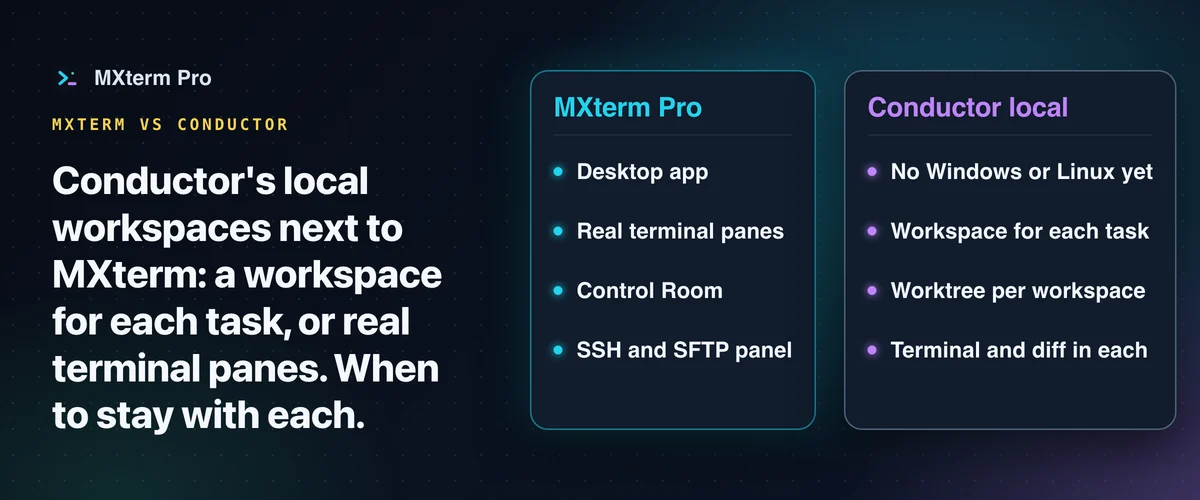
This page compares the local workspaces in Conductor's desktop app, from the coding-agent product on Y Combinator's company profile, with MXterm. In Conductor's desktop app, work is organized around a workspace for each task; in MXterm, split panes run real shells. This comparison puts each product's own descriptions side by side, then shows when to stay with Conductor's local workspaces.
What Conductor says it is
Conductor's docs say: "You can use both kinds of workspace from the Conductor Mac app." (conductor.build/docs/cloud, read 28 October 2026.) This page compares Conductor's local workspaces in its Mac app; Conductor also offers cloud workspaces, which we do not compare. Y Combinator's profile gives the one-liner "Run a team of coding agents on your Mac" and adds "Run parallel agents in isolated workspaces." (ycombinator.com/companies/conductor, read 28 October 2026.)
Conductor's documentation lists Claude Code, Codex, Cursor and OpenCode, and says each task has its own workspace, branch, files, terminal and diff, with a review path (docs.conductor.build, read 28 October 2026). On platforms, its installation page says the desktop app is "not available for Windows or Linux yet" (conductor.build/docs/installation, read 28 October 2026).
On how local workspaces are kept apart, Conductor's docs say it creates a Git worktree for each workspace and checks out a branch there. They describe this as development isolation, not a security boundary (conductor.build/docs/concepts/git-worktrees, read 28 October 2026).
What MXterm is
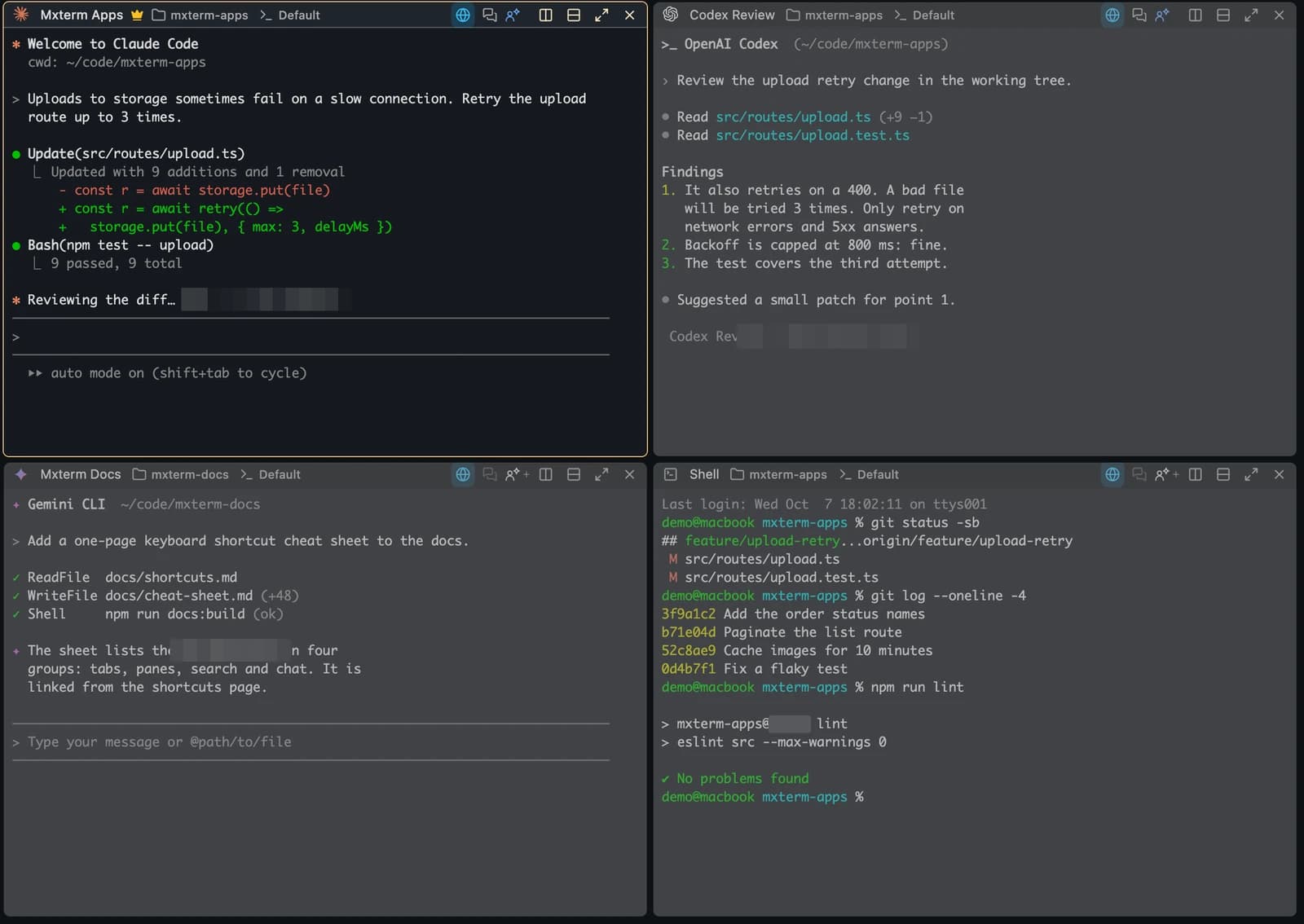
MXterm Pro is a native desktop app for macOS and Windows that puts your real terminals, your AI coding agents and your SSH servers in one workspace. It runs the CLIs you install, such as Claude Code and Codex. Each agent can work on its own branch in its own worktree. For a walkthrough, see running Claude Code in MXterm and isolating AI agents with git worktrees.

Side by side
| Conductor's local workspaces in its desktop app (its own words, read 28 Oct 2026) | MXterm | |
|---|---|---|
| What it calls itself | "Run a team of coding agents on your Mac" (Y Combinator profile) | "One command center for terminals, agents and servers." |
| Agents | The docs list Claude Code, Codex, Cursor and OpenCode. | Runs the CLIs you install, such as Claude Code and Codex. |
| Keeping agents apart | The docs: a Git worktree for each workspace, with a branch checked out there | Each agent can work on its own branch in its own worktree. |
| Platforms | The desktop app is "not available for Windows or Linux yet" (installation page) | A native desktop app for macOS and Windows (Windows support is new); Linux is an early build (a .deb for Ubuntu 22.04 or later). We have not run this build on a real Linux desktop. |
| Remote machines | Conductor also offers cloud workspaces, which this page does not compare | SSH and an SFTP panel in the same window as your agents. |
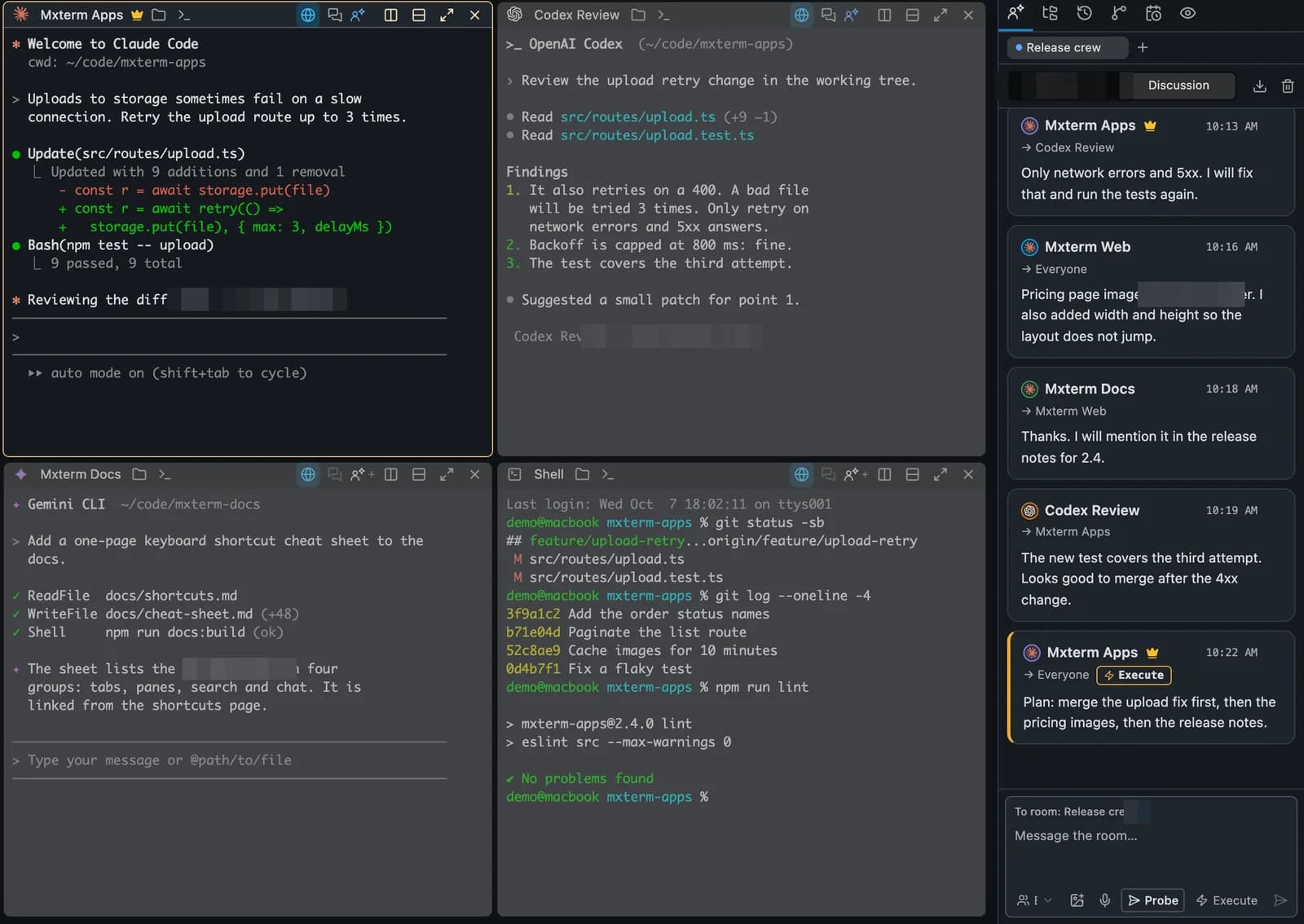
| Around the agents | The docs: each task has its own terminal and diff, with a review path. | With Claude Code and Codex, see which agent is working, waiting or done, and a question from either appears on a card on your desktop. Put your agents in one room and stay in charge. |
| Licence | The pages read do not state one for the app. | See the note under the table. |
On the licence row: neither side is characterised here. The Conductor pages read do not name a licence for the app, and MXterm's own licence terms are on its pages and are not covered here; this page makes no claim about them. The two columns describe different things, so they are not feature-for-feature. A blank or short cell in one column does not mean the other tool lacks the thing; it means that page of that tool was not read for it.
Stay with Conductor if
- You work on a Mac and want Conductor's local workspaces in its desktop app, built around a workspace for each task, as its docs describe.
- You want each task to come with its own branch, terminal and diff, and a review path, as its docs describe.
- You want to run Claude Code, Codex, Cursor and OpenCode from that one desktop app, as its docs list.
- You do not need Windows, since its installation page says the desktop app is not available for Windows or Linux yet.
Choose MXterm if
- You want real terminal panes, with a plain shell in a split pane beside an agent.
- You want SSH hosts and an SFTP panel in the same window as your agents.
- You want to see, for Claude Code and Codex, which agent is working, waiting or done, and to answer their questions from a card on your desktop.
- You want agents in one room: in the Control Room they message each other and you are the Moderator. Messages wait while you type.
- You use Windows as well as macOS.
To try MXterm, use the download page. To compare with another tool, see MXterm vs Orca and MXterm vs Cline Kanban.
Multi-pane SSH, Command Recipes (Cmd+J), and a multi-agent Control Room (formerly War Room): free to start.
Already have MXterm Pro? Read the setup guide →
New to MXterm Pro? See pricing →
Frequently Asked Questions
Y Combinator's profile gives the one-liner "Run a team of coding agents on your Mac". Conductor's docs say each task has its own workspace, branch, files, terminal and diff. This page covers Conductor's local workspaces in its Mac app. (ycombinator.com/companies/conductor and docs.conductor.build, read 28 October 2026.)
Conductor's local workspaces organise work by task: a workspace with its own branch, files, terminal and diff. MXterm organises it by real terminal panes, and each agent can work on its own branch in its own worktree. Which suits you depends on whether you think in tasks or in panes; this page does not rank them.
Conductor's docs say: "Conductor lets you run Claude Code, Codex, Cursor, and OpenCode in parallel." (docs.conductor.build, read 28 October 2026.) In MXterm you run the CLIs you install, such as Claude Code and Codex, in separate panes of the same workspace. A worktree reduces collisions; agents can still edit the same file.
Its installation page says the desktop app is "not available for Windows or Linux yet" (conductor.build/docs/installation, read 28 October 2026). MXterm is a native desktop app for macOS and Windows.
If you work on a Mac and want Conductor's desktop app, organised around a workspace per task, start with it. If you want real terminal panes, SSH and an SFTP panel next to your agents, a Control Room where agents message each other, or you use Windows too, try MXterm.