SFTP GUI for Mac: Browse, Edit, and Chmod Remote Files: Free on Every Plan
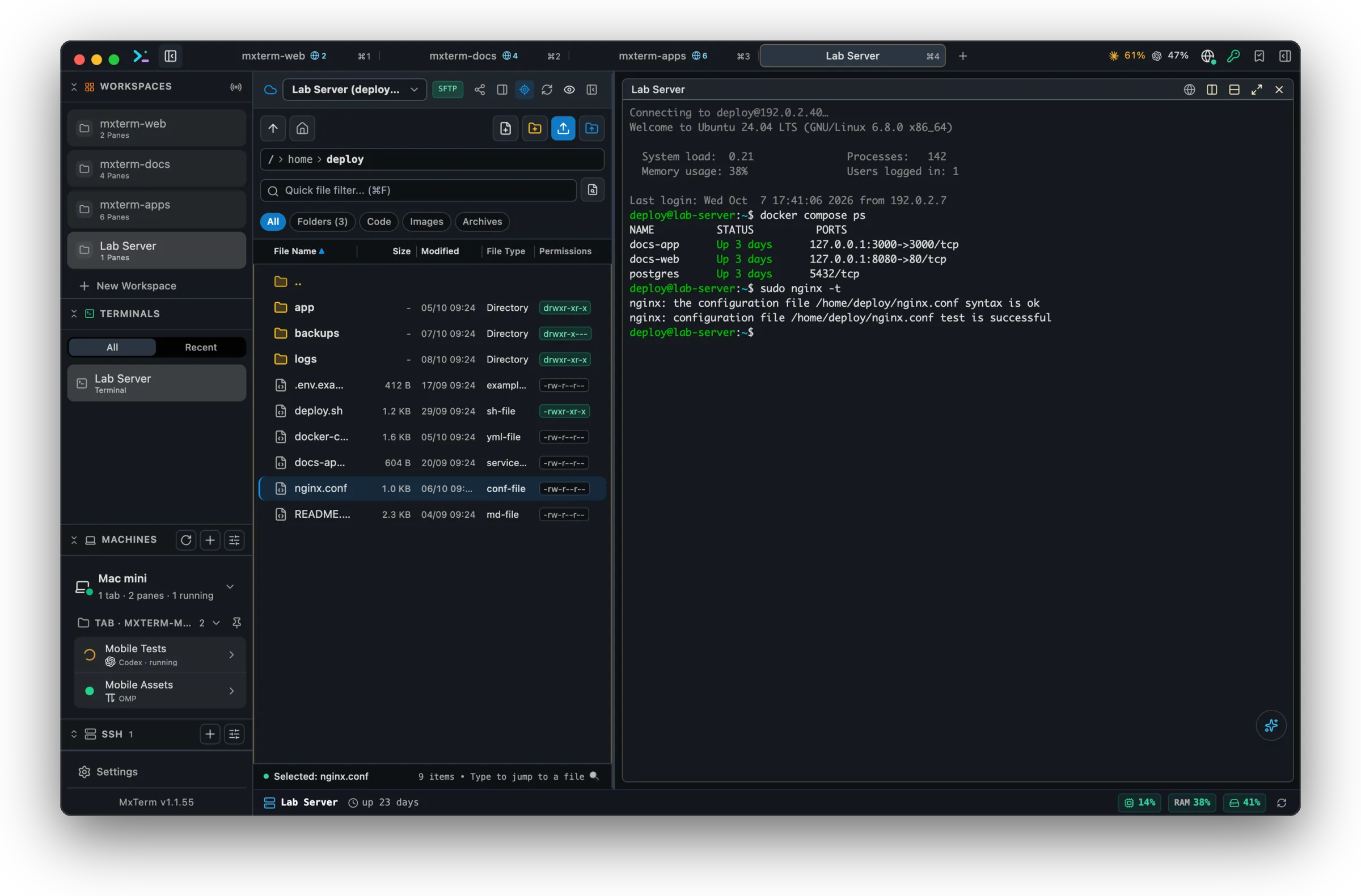
MXterm Pro lets you browse a remote host in a side panel, double-click a text file to edit it in a full Monaco editor (the same engine VS Code uses), and set permissions with a chmod checkbox grid instead of doing octal math. No separate FTP client, no `nano` over SSH. Transfers and edits are free, on every plan.
Monaco editor, not a text box
Double-click a remote file, `.env`, `nginx.conf`, `Dockerfile`, a source file, a config, and it opens with real syntax highlighting. `Cmd+S` checks the file's modification time before saving, so if the file changed on the server while you were editing, you are asked before it is overwritten (the check needs python3 on the server; without it the save goes ahead unchecked). Images open in a viewer, archives and binaries are offered as a download, and a text file over 5 MB asks first rather than refusing.
Remote Grep Search
Runs `grep` on the server itself over the folder you are in, a literal-string match, not regex, skipping `.git`, `node_modules`, `vendor`, `storage`, `dist`, `build` and `.cache`. It lists at most 60 matching lines with their line numbers, and clicking one opens that file in the editor.
Chmod checkbox grid
Right-click any file or folder and choose File permissions... for a 3×3 grid: Owner, Group and Public × Read, Write and Execute. Toggle checkboxes or type the three-digit octal code directly; for a folder, a recursive option applies it down the tree.
Two panels: one remote, one local
The SFTP panel is the remote one. It sits beside the terminal panes of an SSH tab (a workspace connected to a saved SSH host), open by default on the left and movable to the right, and shows one remote tree. It is not a local/remote split view. It follows the folder of the SSH terminal when the server's shell reports it (fish does by itself; bash and zsh need one line in their startup file, which the panel offers to copy), and a button turns following off. Everything above happens on the server: the editor reads and writes over the same SSH connection, and the search runs there.
File Explorer is the local one. It sits in the right-hand panel, a five-tab strip: Control Room, Explorer, History, Git and Preview. It shows a lazily-expanding tree of the focused pane's working directory on your own machine. Dotfiles and the same noise directories the remote search skips are hidden behind a toggle, with a name filter over whatever is loaded.
Click a file there and it opens in a local Monaco editor with the same conflict-on-save behaviour as the remote one, and the same rule for which files may be edited. Reads and writes are jailed to that working directory: the path is canonicalised and symlinks resolved before it is checked to be a descendant of the root, and paths containing control characters are refused. The local editor is the stricter of the two: it turns down anything over 5 MB instead of asking.
Drop files from Finder onto the panel
Dragging files out of Finder and onto the SFTP panel uploads them to the directory it is showing. The drop is routed by where the cursor is. On a local terminal pane, the paths are typed at the prompt. On an SSH pane, the files are uploaded to the server folder the shell is in (the folder the terminal reports, else the folder the panel shows, else your home folder) and the remote paths are typed at the prompt; a name that already exists gets a (1) suffix instead of being overwritten. Anywhere else over the panel, the panel takes the files and uploads them to the directory it is showing. The upload buttons do the same as a drop on the panel.
It rides on the pane's own connection
Since 1.0.22 an SSH pane spawns ssh itself rather than typing a command into a shell, and it uses the same OpenSSH connection-multiplexing socket the SFTP panel does. So the panel reuses the session your pane already authenticated instead of opening its own, and later requests cost a socket round-trip rather than a fresh handshake.
What that costs you in setup: for a key-based host, nothing. For a password host, the panel starts working once the terminal pane has logged in. The file transfers run non-interactively and cannot prompt for a password themselves.
Free on every plan
Browsing, the Monaco editor, remote search, the chmod grid, and uploads and downloads are all included on Free. No part of SFTP sits behind Pro; before 1.0.22 a build gated uploads and edits, and that gate is gone.
The limit you may still meet is elsewhere: by default Free keeps up to 5 saved hosts in the SSH connection manager, and Pro removes that cap.
Related: SFTP GUI remote editor for Mac
Manage remote files free
Browse, edit, search, chmod, upload and download remote files: no credit card required.
Ask AI about MXterm Pro
Open a live answer in ChatGPT, Claude or Perplexity, based on this page. The assistant writes it, not us, so check the sources it cites.
Question sentWhat does the SFTP panel in MXterm Pro offer, and how does it sit next to my SSH tab?