SFTP GUI Remote Editor for Mac: How to Browse, Edit and Chmod Remote Files
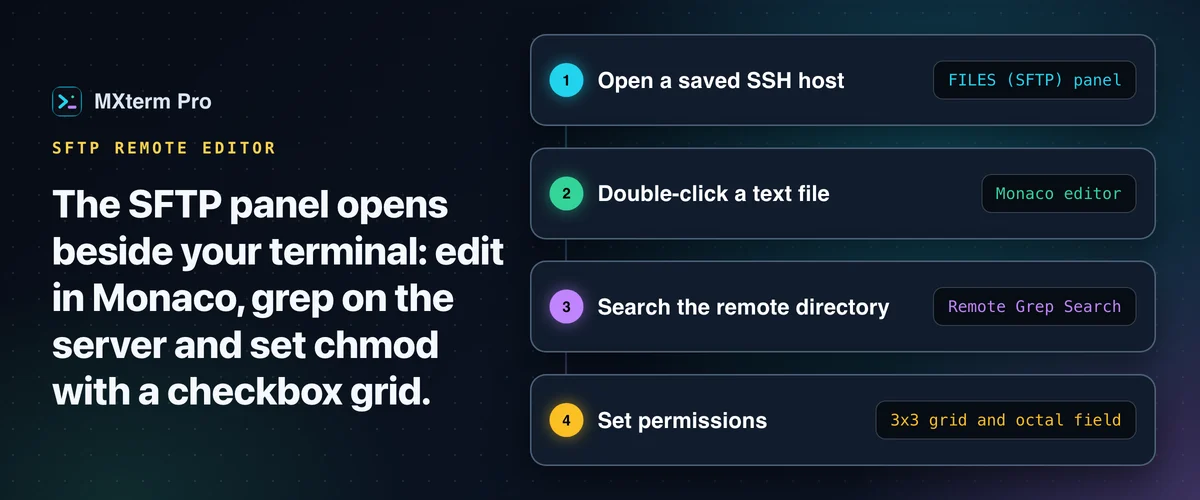
MXterm Pro is a macOS terminal app with a built-in file browser, which makes it an SFTP GUI remote editor for Mac. Connect to a saved SSH host and browse its remote filesystem in a panel beside the terminal. Double-click a text file to edit it in a syntax-highlighted Monaco editor, the same editor engine VS Code uses, without leaving the app or opening vim.
What the SFTP panel actually looks like
Open a saved SSH host and the file manager is already docked beside your terminal, on the left by default. Collapse it with the panel-close button in its header and it shrinks to a narrow vertical "FILES (SFTP)" strip along that edge. Click the strip to bring it back. Drag the divider to resize the panel, and it can sit on the left or the right.
It is not one of the ⌥⌘B auxiliary panel's tabs, which are Explorer, History, Git, Control Room (formerly War Room) and Preview. You get one remote file list with a breadcrumb path bar at the top. Click a breadcrumb segment to jump up a level, or click into the bar to type a path directly.
Each open host tab tracks its own path and file list independently, so switching between two SSH tabs doesn't show you the wrong server's directory.
The SFTP panel follows your SSH terminal's cd, like MobaXterm's file panel, as long as the server's shell reports its folder (OSC 7). fish does this by itself. On bash or zsh, add one line to ~/.bashrc or ~/.zshrc on the server, which the panel offers to copy when it sees a shell that does not report. The Follow terminal folder toggle in the panel turns it off, and you can still browse the remote side on your own with the breadcrumb bar.
Uploads work two ways in the panel. Click the toolbar's Upload (file) or Upload Folder button to open a native macOS file picker, or drag files straight in from Finder and drop them onto the remote list. There is still no second local-file-tree column in this panel, the way WinSCP or Transmit lay it out. Local file selection for an upload goes through the OS picker or drag-and-drop.
Dropping files from Finder onto an SSH terminal pane also uploads them over SFTP, to the terminal's folder, the file panel's folder or your home folder on the server, and types the remote paths into the terminal.
The local File Explorer tab was added in 1.0.22. It lives in the ⌥⌘B panel rather than here, as a tree rooted at the focused pane's working directory. Clicking a text file opens the same Monaco editor for local files that this panel gives remote ones (there you double-click).
Editing remote files: Monaco, not a text box
Double-click a remote text file and it opens in a full Monaco editor instance with real syntax highlighting, not a plain textarea. That covers .env, nginx.conf, Dockerfile, .py, .ts, .rs, .php, .go, .yaml and roughly 90 other extensions the panel treats as editable text. About 75 of them get language-specific highlighting; .txt, .log and .csv open as plain text.
Editor shortcuts carry over from VS Code muscle memory: Cmd+Shift+F for find/replace, Cmd+Option+F to format the document, Cmd+/ to comment a line and Cmd+Shift+K to delete a line. A theme picker is there if you want something other than the default.
Cmd+S writes the file back over SFTP. MXterm Pro first compares the file's modification time with the one it saw when you opened or last saved it. If something changed the file on the server meanwhile, the save is refused and you choose: reload their version and lose your edits, or overwrite theirs. The check needs python3 on the server; without it, the save goes through unchecked.
To use your own editor for a specific file, click the toolbar's external-link icon. It downloads the file to a temp path and opens it in your system's default app for that file type. That helps for a file type Monaco doesn't highlight well, or a habit you're not ready to break.
Related guideMobaXterm for Mac: How to Run It, or What to Use Instead on macOSRemote grep and the chmod matrix
The search icon opens Remote Grep Search, which runs grep on the server itself rather than downloading every file to search locally. It executes grep -rnI --exclude-dir={.git,node_modules,vendor,storage,dist,build,.cache} -F with your query against the current remote directory.
Results are capped at 100 matches per file and 60 in total. Each hit shows the file and line, and clicking it opens that file in the editor (at the top, not scrolled to the matching line). The search is a literal-string match (the -F flag), not a regex engine. Heavy directories like node_modules and .git are skipped automatically, so a search doesn't hang on a large vendor/ tree.
Right-click any file or folder and choose File permissions... (or click the shield icon on the row) to open the Chmod dialog, a 3x3 grid. Owner, Group and Public run down one side, and Read, Write and Execute run across the top. Toggle checkboxes and the octal field updates live (755, 644, 600, 777, whatever you land on). Or type the octal code directly and the checkboxes reflect it.
A recursive option applies the same permissions down a directory tree in one pass instead of chmod-ing files one at a time.
Free vs Pro: what's actually gated
Nothing in the SFTP panel is Pro-only. Everything described above works on the Free tier: the editor, remote grep, chmod, uploads (by button or by dropping files from Finder) and downloads to ~/Downloads (from a row's download button, the multi-select bar or the context menu). The image viewer for .png/.jpg/.gif/.svg/.webp/.ico/.bmp/.tiff files is free too.
The Free tier's limits aren't SFTP-specific, but they shape day-to-day use. By default Free has no pane limit and allows 5 saved SSH hosts, 2 members per Control Room and 1 saved Machine. Pro lifts those caps.
Where this fits next to iTerm2, Termius, and MobaXterm
If you're comparing tools for editing files on a remote Linux box from a Mac, you've probably got iTerm2, Termius or MobaXterm on the list. All three are good at what they do, and none of them targets the same problem as MXterm Pro.
iTerm2 is the long-standing macOS terminal upgrade: fast, deeply configurable, strong split-pane handling. It has no built-in SFTP file browser or remote editor. Its shell integration can download and upload with scp, but for anything more you drop into a pane and type sftp, rsync or scp, or run a separate app like Cyberduck or Transmit alongside it.
Termius is an established cross-platform SSH/SFTP client with host lists that sync between desktop and mobile, which iTerm2 and MXterm Pro don't attempt. It is built mainly around connecting to and managing servers, not around running several AI coding agents in parallel next to those connections.
MobaXterm (Windows-only) bundles SSH, SFTP and X11 forwarding into one tabbed window, and its SFTP panel can follow your terminal's directory. MXterm Pro's file panel does too, once the server's shell reports its folder (OSC 7). It is a strong all-in-one for Windows-based remote administration. It isn't built for running Claude Code, Codex and Gemini CLI as separate agent panes side by side.
As an SFTP GUI remote editor for Mac, MXterm Pro's gap in that lineup isn't a fancier file browser. The SFTP panel, your SSH terminals and a multi-agent Control Room live in the same window, so you can grep a remote log for an error and open the offending file in Monaco without leaving it. For an overview of the panel, see the SFTP GUI page.
If you run one agent at a time in a chat-style terminal, that's closer to what Warp is built for. MXterm Pro is built for running several agents, each optionally in its own git worktree, which reduces the chance that one agent's changes land in another's working copy, next to the servers you're deploying to.
Multi-pane SSH, Command Recipes (Cmd+J), and a multi-agent Control Room (formerly War Room): free to start.
Already have MXterm Pro? Read the setup guide →
New to MXterm Pro? See pricing →
Frequently Asked Questions
Yes, since 1.1.11, when the server's shell reports its folder (OSC 7). The panel then moves to the folder of your SSH terminal after each cd. fish reports it by itself. bash and zsh need one line in ~/.bashrc or ~/.zshrc on the server, and the panel offers to copy it. The Follow terminal folder toggle turns it off, and you can still navigate with the breadcrumb bar or by typing a path.
It's a literal-string search, not regex. Under the hood it runs grep -F on the server against the current remote directory. It skips .git, node_modules, vendor and a few other heavy directories, and caps results at 60. That suits finding an exact string, not pattern matching.
MXterm Pro checks the file's modification time before saving, provided the server has python3. If the file changed since you opened it, the save is blocked and you choose to reload the server's version or overwrite it with yours. It won't merge.
Free. Browsing, editing, chmod, remote grep, uploads and downloads all work without a license. The paid tier lifts the Free caps on saved SSH hosts, Control Room members and saved Machines.
Yes. The external-link icon in the Remote Editor downloads the file to a temp path and opens it in your system's default app for that file type.