How to Manage 50+ SSH Servers and Cloud VMs on a Mac
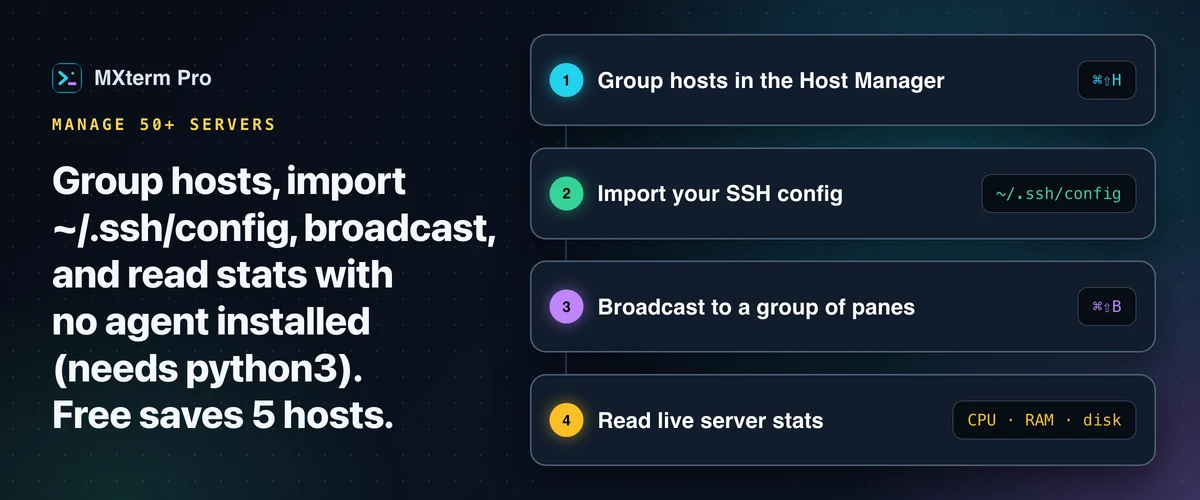
To manage 50+ SSH servers and cloud VMs from a Mac, group your hosts, keep passwords in the system keychain, and read live CPU, RAM and disk numbers without installing an agent on each box. MXterm Pro's SSH Host Manager does this over real OpenSSH connections. Free saves 5 hosts by default; Pro removes the cap.
Who This Guide Is For
This guide is for people running backend infrastructure across AWS, Google Cloud, DigitalOcean, Hetzner or bare metal. That usually means more hosts than fit in memory, split across production, staging and a handful of one-off dev boxes.
If you manage one or two servers, a plain Terminal.app tab and your ~/.ssh/config are still the simplest tool. The organizing features below (grouping, filtering, broadcast and telemetry) start to earn their keep once you juggle a dozen hosts or more and can't remember which tab is which.
Grouping and Filtering Dozens of Hosts
Press ⌘⇧H to open the SSH Host Manager. Each host you add gets a name, address, port, username and one of three auth types: password, private key file or keyboard-interactive. Most shortcuts, including this one, can be remapped in Settings → Shortcuts. Zoom, ⌘, ⌘1 to ⌘9 and a few others are fixed.
Every host belongs to one group. Six groups exist out of the box (Production, Staging, Testing, Cloud / VPS, Internal / VPN, Development), and you can add your own. A row of filter chips above the host list shows a live count next to each group.
Click "Production (14)" and a 50-host list narrows to the hosts that can hurt you if you type the wrong thing. This is a flat set of group filters, not a nested folder tree. There is no free-text search box separate from those filters, so don't expect anything deeper.
If you keep servers in ~/.ssh/config, the Import button reads Host, HostName, User, Port and IdentityFile lines and files them under an "Imported" group in one pass. The same button reads a MobaXterm session file (SSH sessions only, filed under "MobaXterm") and an iTerm2 profile export (profiles whose command is a plain ssh line, filed under "iTerm2"). On a Mac, the Session Manager's Import / Export tab can also scan for iTerm2 profiles.
That group name ("MobaXterm" or "iTerm2" for those imports) shows as a badge on each host, but the filter row lists only the six default groups and any you add yourself, so add a group with the same name to filter by it. On Pro, a 50-host config becomes one import instead of fifty forms. On Free the import stops at the 5-host cap.
The importer doesn't parse ProxyJump or other advanced directives. More on that below.
Where Your Passwords and Keys Actually Live
SSH passwords go to your operating system's credential store (the macOS Keychain on a Mac) under the service name com.mxterm.desktop.ssh, keyed by host id. A key passphrase is not saved: the app strips it before the host list is written, and it never reaches the OS credential store. Windows Credential Manager is wired in, but SSH on Windows is unverified.
Nothing secret is written into MXterm Pro's own local settings file. An older saved host that still had a plaintext password is rewritten without it on the next load.
A key file path like ~/.ssh/id_ed25519 isn't a secret, just a path, so that one field stays in the plain host list. That matches what you'd see in a ~/.ssh/config.
Why Reconnecting to the Same Server Feels Instant
On macOS, every SSH connection MXterm Pro opens carries three options: ControlMaster=auto, ControlPath=~/.mxterm/sockets/%r@%h:%p and ControlPersist=10m. That is real OpenSSH connection multiplexing, not something custom.
The first connection to a host opens a master socket. Later connections to the same host, such as a second terminal tab or the SFTP panel, reuse it, and the master stays alive for 10 minutes after the last one closes. That skips a fresh TCP handshake and auth round-trip. Changing a saved host's connection settings or deleting the host closes its shared connection, and the file panel shows a Reset connection button when the server refuses a login or demands a new password.
This also fixes a problem for password-authenticated hosts. BatchMode=yes means SFTP can't prompt for a password on its own, so without a shared master socket a password host would connect in a terminal tab and fail in the file browser. Sharing the ControlPath lets the SFTP panel piggyback on a session you already authenticated in a terminal pane.
Running the Same Command on Multiple Servers at Once (Broadcast Mode)
⌘⇧B turns on Broadcast Mode with every pane of the current tab already in the group. Option/Alt+Click a pane to take it out or put it back. Clear empties the group and Select all refills it. A persistent banner reading "Broadcast ON · N panes" stays on screen. Keystrokes typed into any pane in the group go to all of them, in layout order.
Check two things before you rely on it for 50 servers. The group starts as every pane in the current tab, so narrow it before you type, and it reaches only the panes of that tab, not every open connection. And there is no per-keystroke confirmation once it's on, because the point is to type once and have it land everywhere.
The safety net is the banner, which is hard to miss. Clear drops the whole group and Esc exits instantly. Build your group with the care you'd use before running pssh or tmux synchronized panes against a production fleet, because the tool won't stop you from broadcasting to the wrong six servers.
Live Server Telemetry Without a Monitoring Agent
The Server Telemetry HUD sits at the foot of an SSH tab and shows CPU %, RAM %, disk % and uptime, color-coded green, amber or red past 65% and 85%. It refreshes on its own every 20 seconds, and a manual refresh button gives you a number right now.
Each refresh runs a short-lived python3 -c "..." one-liner over your existing SSH connection. It reads CPU load from os.getloadavg() against core count, memory from /proc/meminfo, disk from shutil.disk_usage('/') and uptime from /proc/uptime, then exits. Nothing is installed and nothing stays resident on the server.
The one requirement is that python3 exists on the remote host. Many server images ship it, but minimal ones such as Alpine often don't. Without it the stats bar stays empty: the uptime call it also tries gives no usable fields, and MXterm Pro shows no numbers rather than invented ones. RAM is read from /proc/meminfo, so a macOS or BSD server shows a dash for RAM instead of a percentage.
What About Jump Hosts and Bastions?
A saved host has a Jump Host / Bastion field (you can chain several, separated by commas) plus a Forward SSH agent option. The connection is built as real ssh argv with -J and -A set accordingly.
The ~/.ssh/config importer doesn't fill that field in for you. Reading it picks up HostName, User, Port and IdentityFile only, and a ProxyJump line is skipped rather than translated. An iTerm2 profile whose command is ssh -J bastion host does bring its jump host along. For hosts imported from ~/.ssh/config or MobaXterm, set the jump host yourself, once, in the host's own form.
Alternatively, a terminal pane is a real PTY. If your ~/.ssh/config has a Host prod-db entry with a ProxyJump bastion line, typing ssh prod-db into a plain shell pane honors that config just as Terminal.app would.
You won't get that host's group label or server stats bar that way.
Broadcast reaches the panes of one tab. A tab opened from the SSH Host Manager is bound to a single host, so to type into several servers at once, open plain shell panes in one tab, run ssh <alias> in each and broadcast to those. Free has no pane limit.
Free vs. Pro: What 50 Servers Actually Costs You
This is the number that matters most for this use case: the free tier caps you at 5 saved SSH hosts. Grouping, import, multiplexing, broadcast and telemetry work identically on Free and Pro. You just can't save 50 hosts without Pro's unlimited host limit.
The same Free vs. Pro line runs through the rest of the app. Free has no pane limit. It caps a Control Room (formerly War Room) at 2 members per room (Pro has no member cap) and saves 1 Machine.
None of this is required to manage 50 servers. It only comes up if you also run Claude Code, Codex or Gemini CLI against those servers alongside your SSH sessions.
How This Compares to iTerm2, Warp, Termius, and MobaXterm for a Server Fleet
iTerm2 is a mature, free, macOS-only terminal emulator with excellent tmux integration and profile management. Profiles and its Keychain-backed password manager cover a lot, but it doesn't ship a dedicated SSH host manager with group filters or a telemetry HUD. You'd assemble that yourself from tmux, dotfiles and separate monitoring tools.
Warp is a modern terminal with AI built into the same window as your shell. It's a strong pick if you want AI help writing commands and running agents. It isn't built around dozens of saved SSH hosts with groups and server stats. MXterm Pro is built for several agents in split panes.
Termius is the closest competitor here. Cross-device SSH host sync, a mobile app and a mature host organizer are real strengths, and if you need your host list on your phone, it's the better fit. It doesn't run multiple AI coding agents side by side or provision a git worktree per agent.
MobaXterm remains the deepest tool for Windows users who need X11 forwarding and tunneling alongside SSH, but it has no macOS build and no AI agent orchestration.
MXterm Pro's Multi-Agent Control Room runs several agents (Claude Code, Codex, Gemini CLI and others) in split panes. When worktree isolation is turned on, each agent pane gets its own git worktree at <repo>/.worktrees/<slug>, which reduces the chance one agent's mistake touches another's working copy.
⌘J Command Recipes matches what you type against a built-in set of ready-made Linux commands. It is keyword matching, not a model writing bash.
Getting Started
Download MXterm Pro and try the SSH Host Manager on however many hosts you have today. Grouping, import, multiplexing, broadcast and the telemetry HUD are all available on the free tier.
The one wall you'll hit with a real 50-server fleet is the 5-saved-host cap. Pro's unlimited hosts is what gets you past it.
Multi-pane SSH, Command Recipes (Cmd+J), and a multi-agent Control Room (formerly War Room): free to start.
Already have MXterm Pro? Read the setup guide →
New to MXterm Pro? See pricing →
Frequently Asked Questions
Saved SSH passwords go to the OS credential store (macOS Keychain on a Mac) under the service name com.mxterm.desktop.ssh, not the app's settings file. A key passphrase is not saved. A key file path (~/.ssh/id_ed25519) isn't a secret, so it stays in the host list. The file panel, transfers and stats bar use BatchMode=yes and can't prompt for a password, unlike the terminal pane.
Yes. ⌘⇧B turns it on with every pane of the current tab in the group. Option/Alt+Click toggles a pane, Clear empties the group and Select all refills it. A persistent "Broadcast ON · N panes" banner stays visible and Esc exits instantly. There is no per-keystroke confirmation, so narrow the group first. The safety is a banner that is hard to miss and easy to clear, not a prompt.
No. The free tier caps saved SSH hosts at 5, and Pro removes that cap. Grouping, filtering, import, multiplexing, broadcast and the telemetry HUD all work the same on both tiers. The host count is the limit a 50-server fleet will hit.
No persistent agent. Each refresh runs a short-lived python3 one-liner over your existing SSH connection to read CPU load, /proc/meminfo, disk usage and /proc/uptime, then exits. The one requirement is python3 on the remote host; without it the stats bar stays empty.
Yes. Since 1.0.21 each saved host has a Jump Host / Bastion field (chain several with commas) and a Forward SSH agent option. Importing ~/.ssh/config still skips ProxyJump lines, so set the jump host on imported hosts yourself. Typing your existing ssh alias into a plain shell pane also works as in Terminal.app, but without that host's group or server stats from the managed Connect flow.
The importer reads Host, HostName, User, Port and IdentityFile lines and creates one saved host per Host entry that has a HostName. Wildcard Host * blocks and entries without a HostName are skipped, and only the first IdentityFile is kept. It does not parse ProxyJump, Match blocks or other advanced directives. Those still apply if you type the alias directly in a shell pane.