MXterm Pro's SSH Port Forwarding GUI: Local -L Rules and What's Missing
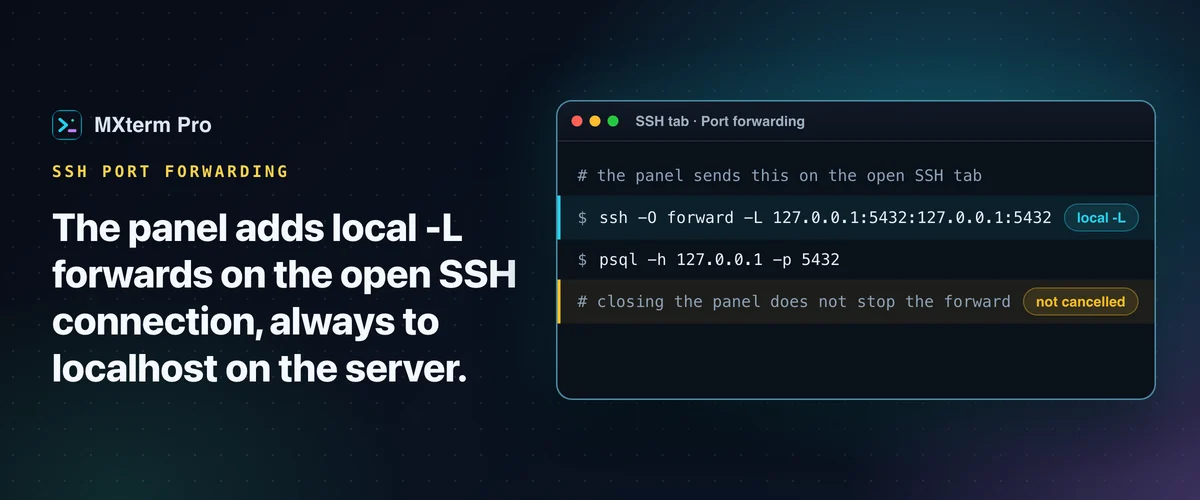
MXterm Pro has an SSH port forwarding GUI for Mac, but a narrow one: a panel on an open SSH tab that adds and cancels local (-L) forwards to 127.0.0.1 on the server. It has no remote (-R) or SOCKS option and saves no rules. It suits a database or admin-UI forward, not a tunnel you keep. This page covers those limits, not SSH tunneling from scratch.
What does the port forwarding panel in MXterm Pro do?
MXterm Pro's panel adds and cancels local port forwards on the SSH connection your tab already has open. It does not open a second connection or ask you to log in again. Each rule goes to the running ssh process as a control command, so the forward rides the session you are already typing in.
You reach it from the SFTP panel that docks beside an SSH tab, the same remote file panel used for browsing and editing. Its header button has the tooltip SSH Port Forwarding & Tunnels Manager and opens a window titled SSH Port Forwarding & Tunnels. A plain shell pane has no SFTP panel, so it has no forwarding button either.
Each SSH tab runs the system ssh with ControlMaster=auto and a shared ControlPath. Start sends ssh -O forward -L <spec> to that master. Stop sends ssh -O cancel -L <spec>.
The panel footnote reads "The whole forwarded stream is encrypted by SSH". That is true in the ordinary sense: it is the same OpenSSH forward you get from ssh -L, with the same encryption, not a different transport.
How do you add a local forward, and what command does it become?
In MXterm Pro, three fields, Name, Local Port and Remote Port, become one -L forward on the open connection, such as ssh -O forward -L 127.0.0.1:5432:127.0.0.1:5432. There is no destination-host field and no direction switch. The steps assume the host is already saved in the SSH manager (see the SSH and SFTP docs).
1. Open the host as an SSH tab. Shift+Cmd+H opens the SSH manager, and Connect opens a tab running the system ssh. Log in in the terminal as usual. That login is the connection the forward will use.
2. Click the forwarding button in the SFTP panel header. Under Add New Port Forward, fill in a name (the placeholder suggests Postgres 5432), a local port and a remote port, then press Add Rule. Ports must be from 1 to 65535. A port outside that range is refused with an error before ssh ever sees it.
3. Press Start on the rule. The badge changes from STOPPED to RUNNING only after ssh accepts the forward.
If ssh refuses, its own error text appears in red above the list and the badge stays STOPPED. Stop cancels the forward. Deleting a running rule sends the same cancel, but if that cancel fails the row disappears anyway and no error is shown.
For Local Port 5432 and Remote Port 5432, the app sends ssh -O forward -L 127.0.0.1:5432:127.0.0.1:5432 to the tab's connection, addressed as <user>@<host>. Point psql or your database client at 127.0.0.1:5432 on the Mac, and the traffic comes out at port 5432 on the server.
The general shape is 127.0.0.1:<local>:127.0.0.1:<remote>.
Where can a forward point? Only at localhost on the server
Every rule MXterm Pro's panel creates targets 127.0.0.1 as the SSH server sees it. That covers Postgres, Redis or an admin UI running on the server itself. It cannot reach a third machine behind the server, such as db.internal:5432, because the form has no destination-host field and the code fills in 127.0.0.1 for you.
The rule row shows 127.0.0.1:<local> → <server>:<remote>, with your server's address on the right. Read that as "port <remote> on the server itself". The forward still ends at the server's own loopback address, not at some other interface.
The Mac end is fixed as well. The spec binds the local port to 127.0.0.1 explicitly, so a GatewayPorts yes line in your ~/.ssh/config cannot publish a forwarded database port to your network. Only programs on this Mac can connect to it.
For a third host, type the forward yourself in a normal shell pane: ssh -L <local>:db.internal:5432 <user>@<bastion>. That is plain OpenSSH running in a real terminal.
Closing the panel does not stop a forward
Closing MXterm Pro's panel does not cancel a running forward. The forward belongs to the SSH connection behind the tab, not to the panel's list. The panel is mounted only while it is open, its close button only closes it, and it has no cleanup step that sends -O cancel. Only Stop and the delete button cancel a single forward.
Closing the whole shared connection also ends every forward on it: the file panel's Reset connection button (shown when a server refuses a login or forces a password change) does that, and so does editing a host's connection settings or deleting or re-adding the host in the SSH manager.
Close the panel with a rule RUNNING, reopen it, and you get an empty list while the port can still be listening.
OpenSSH, not the app, decides how long a running forward keeps listening. -O forward and -O cancel are commands sent to the multiplexing master. The ssh_config man page says ControlPersist keeps that master in the background after the last session closes. It ends the master once it has been idle, with no client connections, for the set time.
Every SSH tab here is started with ControlPersist=10m, so that is 10 minutes.
Because the master holds the connection, a forward added this way can outlive the tab, so closing the SSH tab may not end it at once. How this behaves on Windows has not been checked.
To check for a leftover forward, lsof -iTCP:<port> -sTCP:LISTEN shows whether anything still listens on that port.
To drop it, cancel it on the same master the app uses: ssh -o ControlPath=$HOME/.mxterm/sockets/%r@%h:%p -p <port> -O cancel -L 127.0.0.1:<local>:127.0.0.1:<remote> <user>@<host>. Use the port, user and host exactly as saved in the SSH manager (the port is 22 unless you changed it).
If the connection is gone, Start fails with ssh's own message, typically Control socket connect(...): No such file or directory. Open the host in an SSH tab and press Start again. The panel does not reconnect forwards, and nothing in its code re-checks a RUNNING badge after ssh first accepts the forward. Noticing a dropped session is a keepalive question, covered in the SSH timeout guide.
What MXterm Pro's port forwarding does not do
MXterm Pro's interface offers local (-L) forwards only: no remote forward option, no dynamic SOCKS proxy, no destination-host field. Rules are not saved, so nothing comes back after a reconnect.
The panel also needs an open SSH tab. The button lives in the SFTP panel, which exists only beside SSH tabs, and a forward needs the connection that tab opened. A local shell pane, or a saved host you have not connected to, has nothing to forward through.
On Windows, treat tunnels as untested. MXterm Pro's SSH, SFTP and tunnel code depends on the HOME variable and OpenSSH's ControlMaster, and the app's documentation marks that combination UNVERIFIED on Windows. The tunnel code builds its socket path from HOME. Without it, Start reports that it cannot find the ssh master.
Forwarding has no tier cap in the code: the panel has no Pro check and no limit on the number of rules. The Free limit that does touch it is the SSH host list, which holds 5 saved hosts on Free by default.
When should you use the panel, and when should you type ssh yourself?
Use the panel for a quick forward to something on the server itself, such as a database, Redis or an internal web page. You can start and stop it without leaving the session. Type ssh yourself when you need a third-host destination, a reverse forward, a SOCKS proxy, or a rule you want kept for next time.
Panes in MXterm Pro are real terminals, so an ssh command with -L, -R or -D typed into a normal pane behaves as it does anywhere OpenSSH runs. The app does not manage, list or save those forwards. They normally last as long as that ssh process does, unless your own ~/.ssh/config turns on ControlMaster with ControlPersist.
For a worked example across an SSH connection, see running Ollama alongside SSH sessions.
To try it, open a saved host as an SSH tab, open the forwarding panel from the SFTP header, and add one rule for a port you already forward by hand. If it covers your case, the extra ssh -L window can go. If you need more than a local forward to the server itself, keep typing ssh.
Multi-pane SSH, Command Recipes (Cmd+J), and a multi-agent Control Room (formerly War Room): free to start.
Already have MXterm Pro? Read the setup guide →
New to MXterm Pro? See pricing →
Frequently Asked Questions
SSH local port forwarding is OpenSSH's -L option: the ssh man page describes it as forwarding connections on the local host to a given host and port on the remote side. MXterm Pro's panel offers this, but local forwards only, on an open SSH tab. The destination is always 127.0.0.1 on the server, so 127.0.0.1:<local> on your Mac reaches <remote> on the server.
Not in MXterm Pro's panel. The interface creates local (-L) forwards only, always to 127.0.0.1 on the server. You can still type an ssh command with -R or -D in a normal shell pane, because panes are real terminals. That is plain OpenSSH, though: MXterm Pro does not list, save or stop those forwards.
No. MXterm Pro's rule list exists only while the panel is open, so it is empty each time you open it and nothing is restored after a reconnect. Closing the panel does not cancel a running forward. Check with lsof or cancel it with ssh -O cancel if you need the port back.
Not from MXterm Pro's panel. The destination host is fixed at 127.0.0.1 as the server sees it, so only services on the server itself are reachable. For a machine behind it, type the forward in a normal shell pane, for example ssh -L <local>:db.internal:5432 <user>@<bastion>.
That is ssh's own message when there is no open connection for the host, so the forward has nothing to attach to. Open the host in an SSH tab, log in, then press Start again. The panel shows ssh's error text as it is rather than hiding it, and the badge stays STOPPED.
Not through MXterm Pro's panel. It binds the local end to 127.0.0.1 explicitly, so only programs on the same Mac can connect, even if your ~/.ssh/config sets GatewayPorts or you normally pass -g. A forward you type yourself follows whatever options you give it.
Unverified. The SSH, SFTP and tunnel features depend on the HOME variable and OpenSSH's ControlMaster, and the app's own documentation marks them unverified on Windows. The Windows x64 build is available but not Authenticode-signed. Do not rely on the forwarding panel there without checking it yourself.