Which MXterm Pro Remote Access Address Does MXterm Pro Use?
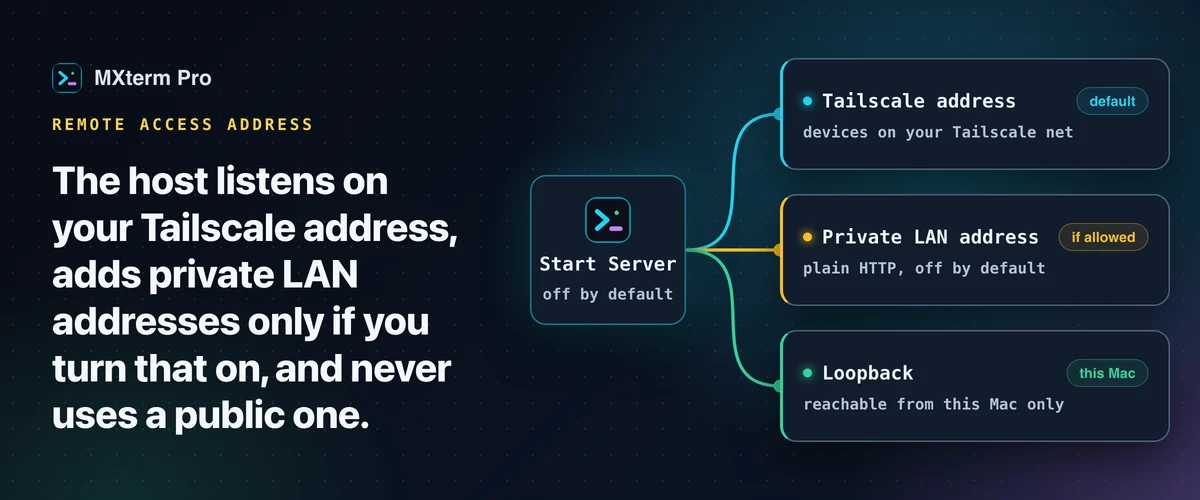
The MXterm Pro remote access address is your Tailscale address. Since 1.1.30, LAN does not replace it: it is off by default, and when you allow it, MXterm Pro listens on your private network addresses in parallel with Tailscale. It never binds to a public address. The host server is off by default, and nothing listens for other devices until you press Start Server in Settings → Remote Access & Devices. A separate setting can also start it when MXterm opens.
Your MXterm Pro Remote Host Does Not Auto-Start by Default
MXterm Pro's remote host is off by default. It starts when you press Start Server in Settings → Remote Access & Devices, and nothing listens for other devices until you do. By default the server does not start when the app launches. Under Unattended access in the same Settings page, the setting "Start the host server when MXterm opens" changes that, and it is off until you turn it on.
It also does not start after a Mac restart unless "Start the host server when MXterm opens" is on (together with Open at login in Settings → General). With that setting off, you press Start Server again. Pane shares survive an app restart since 1.1.30: a share is designed to come back when its pane does, only before its deadline, and a share that cannot be verified is dropped.
If the Mac changes network while the host is running, for example after waking on a different Wi-Fi, Settings reports the server as stopped and shows Start Server again. Press it to listen on the addresses the Mac has now.
This design means MXterm Pro never opens the remote host to other devices unless you press Start Server or turn on the launch setting yourself, and neither is on by default. If you close or quit the app, the listening sockets close and no address is left listening.
Which Addresses MXterm Pro Listens On: Tailscale, and LAN Only If You Allow It
When you press Start Server, MXterm Pro starts one listener per address. The first is your Tailscale address. The others are your private LAN addresses, but only if you switched on Allow devices on my local network in Settings → Remote Access & Devices → Advanced. It never listens on loopback, a public address or a wildcard, and at most 4 addresses at once. The default port is 6868, walking up to 6877 if the previous port is in use.
Before 1.1.30 the host bound a single address and fell back from Tailscale to LAN on its own. That chain is gone. Tailscale and LAN now run in parallel, each listener knows which kind of network it is on, and LAN is never treated as encrypted. If you change the switch while the server runs, the listeners are added or dropped without a restart.
If your Mac has a Tailscale address, a device on your Tailscale network can reach the host, but it still has to pair with the 6-character pairing code or the access password, and it can open only the panes you share (view only or with control, optionally until a deadline). Standing access passwords need Pro. Free gets a Temporary one of up to 8 hours, Pro up to 7 days. A password needs at least 6 characters.
On Free, one other computer at a time can control this Mac, and you can share up to 5 panes at once. The MXterm phone app (iPhone, iPad) is not counted toward the computer limit, and neither is a browser. SSH hosts, Control Room (formerly War Room) members and Machine limits apply when you create a new item and never close what is already open.
Without Tailscale, nothing listens on your network until you turn LAN access on. With Tailscale missing and LAN off, Start Server does not start and says so. Loopback is used only when the Mac has no network at all, and then only this Mac can reach it.
If you install Tailscale after first starting the host, stop the server and press Start Server again so the new Tailscale address is picked up.
Related guideHow to Prevent SSH Connection Timeouts on Your MacBookWhat Each Listen Address Means for Reachability
The MXterm Pro remote access address decides which devices can reach your remote host. A Tailscale address is reachable from any device logged into the same Tailscale network, wherever those devices are. A private LAN address, once you allow it, is reachable from devices that can route to that private address, usually the same Wi-Fi or LAN. A loopback listener, used only with no network, is reachable only from the Mac itself.
In every case, MXterm Pro never binds to a public IP address. The host is not reachable directly from the internet.
Tailscale connects your devices directly whenever it can and uses its DERP relay servers only as a last resort (see tailscale.com/kb/1232). A private LAN address needs no extra software but only works within range of your router.
Finding Your Tailscale IP Address (If You Have Tailscale)
If MXterm Pro is listening on your Tailscale address, it appears directly on the host card in Settings → Remote Access & Devices, titled 'Host server · Tailscale'. You can also run tailscale status in any terminal window on that Mac. The output shows your Tailscale IP (see the CLI reference at tailscale.com/cli).
If Tailscale is not installed, only the LAN listeners can run, and only if you allowed LAN access.
The Port: 6868, and Why It May Walk Up to 6877
MXterm Pro's remote host listens on port 6868 by default. If that port is already in use on your Mac, MXterm Pro tries 6869, then 6870, and continues up to 6877. After a start, it tries the port it used last time first, so a saved address keeps working. This avoids manual port configuration when the default is taken.
When you add the host as a Machine on a client Mac, you enter the full address including the port: http://100.64.1.5:6868 (Tailscale example). The pairing code, or the host's access password if you turned one on, is entered separately in the app. The access password is accepted over Tailscale or, if you turned LAN on, over your local network. Loopback refuses it.
LAN Is Not Encrypted: What You Need to Know
When you turn LAN access on, traffic on that address is not encrypted. It is plain HTTP on the local network, not HTTPS. Anyone on the same Wi-Fi network or subnet could potentially observe that traffic. The app itself and the usage guide both document this, and the switch asks you to confirm before it turns on.
If you need encrypted traffic, use a Tailscale address instead. Tailscale secures traffic between nodes with end-to-end encryption (see tailscale.com/kb/1153). MXterm Pro's own host server has no HTTPS option on a LAN address, so encryption on that path comes only from Tailscale. The access password works on LAN too, but because LAN is plain HTTP, prefer Tailscale for anything sensitive.
A paired device gets its own token, which you can revoke per device in Settings → Remote Access & Devices, and paired devices stay paired after a host restart. A device unused for 30 days has to pair again.
Multi-pane SSH, Command Recipes (Cmd+J), and a multi-agent Control Room (formerly War Room): free to start.
Already have MXterm Pro? Read the setup guide →
New to MXterm Pro? See pricing →
Frequently Asked Questions
No. MXterm Pro never binds to a public address. It listens on a Tailscale address and, only if you allow it, on private LAN addresses. It never listens on a routable public IP.
Port 6868 by default. If that port is taken, MXterm Pro walks up to port 6877. The full address with port is shown on the host card in Settings → Remote Access & Devices.
Yes, on your local network. LAN is off by default, so without Tailscale nothing listens until you turn on Allow devices on my local network in Settings → Remote Access & Devices → Advanced. Then other devices on that network can reach the host over plain HTTP. Tailscale is the encrypted path, so prefer it if you have it installed.
Yes. The access password is accepted over Tailscale and, if you turned LAN on, over your local network. Only loopback refuses it. On LAN it travels over plain HTTP, so prefer Tailscale for anything sensitive.
No. Traffic on a private LAN address is not encrypted, because MXterm Pro uses plain HTTP on the LAN. If you need encrypted traffic, use your Tailscale address instead. Tailscale provides end-to-end encryption.
Run tailscale status in a terminal on the host Mac. The output shows your Tailscale IP (CLI reference: tailscale.com/cli). You can also find it on the host card in Settings → Remote Access & Devices.