Docker Build Terminal on Mac: Builds Alongside SSH Deploys
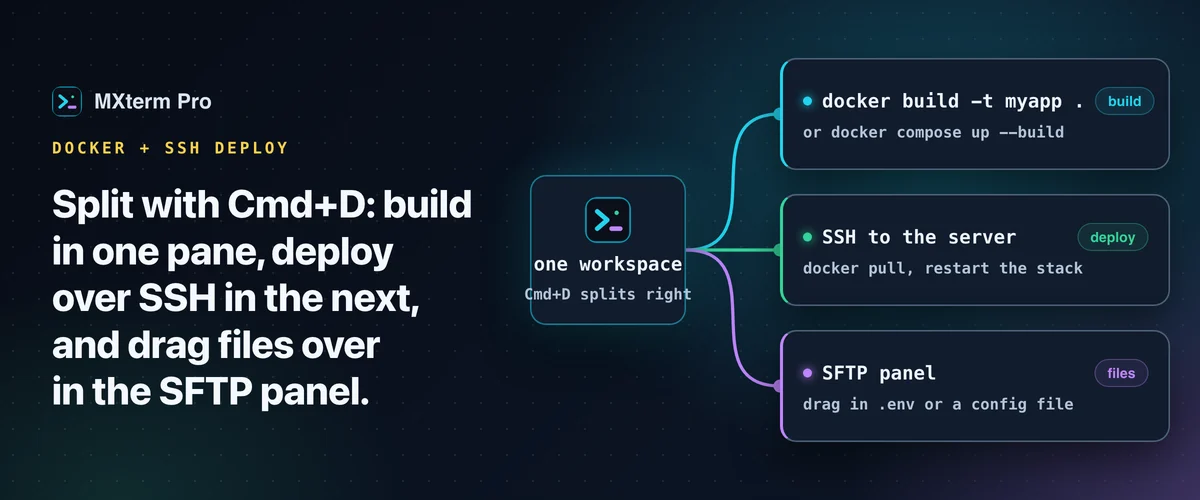
Keep your docker build terminal on Mac and your SSH deploy session side by side: docker build (or docker compose up --build) in one pane, the server in the next. In MXterm Pro the split is one keystroke (Cmd+D). Both are real shells over a real PTY, so docker logs -f and the SSH session behave as on the command line, with no Docker integration to learn.
Split the Workspace: One Pane Builds, One Pane Deploys
Press Cmd+D to split the focused pane to the right, or Cmd+Shift+D to split it downward. The Windows build binds these to Ctrl+D and Ctrl+Shift+D. Run docker build -t myapp . or docker compose up --build in one pane.
Open or reuse an SSH session to your target server in the other, ready to docker pull the new image or restart the stack when the build finishes.
Once you have two or more panes, drag a pane's header toward the edge of another pane. MXterm Pro highlights the zone under the pointer: the middle of a pane is Swap Panes, and the nearest edge is Insert Left, Right, Above or Below. It drops the pane there on release. An inserted pane always starts as an even 50/50 split.
Dividers snap too: let go of one within about 3.5% of center and it settles at 50/50. Double-click a divider to reset it to 50/50. Cmd+Shift+M temporarily maximizes the focused pane, which helps when you read a long build log full-screen. Toggle it again to return to the two-pane view for the deploy.
Both panes are real terminal sessions over a real PTY: the same portable-pty Rust backend every pane uses, not a wrapper around one. So docker logs -f, docker stats and docker exec run in a real shell, and nothing Docker-specific needs configuring.
Who This Actually Helps
This Docker build and SSH deploy setup fits people who build an image locally (or trigger the build over SSH) and then push or pull it onto a VPS or a small cloud box by hand. That means indie developers, small teams without a full CI/CD pipeline, and anyone using an AI coding agent to iterate on a Dockerfile who wants to re-run the build in place.
If your deploy is fully automated, the second pane matters less. A CI pipeline builds, pushes and rolls the container on every merge, so no manual moment sits between "build finished" and "server is running it." The pane trick earns its place in the manual or semi-manual middle step.
Related guideOrchestrating Parallel AI Agents in Split Terminal PanesWatching a Build While an AI Agent Edits the Dockerfile
Put a coding agent (Claude Code, Codex, Gemini CLI, Copilot) in one pane and a build pane next to it. When the agent changes the Dockerfile or a compose file, re-run the build in the adjacent pane without switching context. The agent's edits and the build output stay on screen together.
The built-in Command Recipes box (Cmd+J) holds a fixed set of ready-made commands for everyday tasks. It is not a general command generator. For Docker it recognizes two intents: ask it to list containers and it hands you docker ps -a && docker stats --no-stream; ask it to clean up and it gives you docker system prune -af --volumes.
It won't write a docker build command, invent --entrypoint overrides or work out bind-mount flags for you. You type those yourself, as in any terminal.
Worktree isolation is an opt-in checkbox in the new-tab composer. It is off by default and works only in git repos. Tick Isolate features in git worktrees and the agent edits the Dockerfile in its own <repo>/.worktrees/<slug> checkout on a new swarm/<adjective>-<noun> branch, for example swarm/brave-otter. Your build pane keeps watching the plain working tree at the repo root.
That reduces the chance the agent edits a file your build is reading from underneath you. You can review and merge the agent's Dockerfile change before your own build picks it up.
Getting a File onto the Server Before the Container Starts
Some deploys need a file on the server before the container starts cleanly: a .env file, a TLS certificate, a config mount. The built-in SFTP browser covers that without a separate FTP client. Open the server from the SSH manager so its tab has the SFTP panel, then drag the file across.
If the container expects a specific mode, right-click the file, choose Change Permissions (Chmod), and set the checkboxes or one of the presets (755, 644, 777, 600).
If the file is already on the server (a Dockerfile, nginx.conf, .env* or a YAML compose file), double-click it in the SFTP panel. It opens for editing on the remote host with syntax highlighting, so you skip the download, local edit and re-upload.
The chmod dialog and remote editing are both available on the Free tier.
Free vs Pro for This Workflow
By default, Free has no pane limit, and allows 5 saved SSH hosts and 1 saved Machine. Pro has no host cap.
MXterm Pro vs iTerm2, Warp, Termius, and MobaXterm for This
iTerm2 is free and mature, and its split panes plus tmux integration handle this local-build, remote-deploy pattern well. If you're Mac-only and don't need a built-in SSH host list, SFTP browser or AI agents in the same window, a couple of iTerm2 splits will do the job.
MXterm Pro's difference for this workflow is that the SSH host manager, a built-in SFTP browser and the multi-agent Control Room (formerly War Room) live in the same window as the build pane. With iTerm2 you would typically add a separate SFTP client and your own way to track your server list.
Warp is built around command blocks and built-in AI, with a modern GPU-rendered UI. It is strong when the workflow is "ask the AI, run one command, read the output." MXterm Pro centers on several real terminals and agents in one split layout.
Termius is a strong cross-platform SSH client with synced hosts and its own SFTP, especially useful if you also manage servers from a phone. It also has a split view and local terminals. It is built around saved hosts and sessions, though, rather than around a build-and-deploy workspace with AI agents.
MobaXterm is the closest in spirit: tabbed sessions, a graphical SFTP browser in the sidebar, and macros that will feel familiar if you already use it for exactly this Docker-plus-SSH pattern. MXterm Pro is a newer Tauri app built the same "terminal and SFTP in one window" way. It runs on macOS, with an unsigned Windows x64 build, and adds the multi-agent layer MobaXterm doesn't have.
Multi-pane SSH, Command Recipes (Cmd+J), and a multi-agent Control Room (formerly War Room): free to start.
Already have MXterm Pro? Read the setup guide →
New to MXterm Pro? See pricing →
Frequently Asked Questions
No. MXterm Pro doesn't replace Docker Desktop or provide a graphical container manager. It is a terminal app, so Docker commands run in a pane like any other command.
Yes. If you SSH into a server with Docker installed, docker build runs there exactly as it would over any other SSH connection.
Only two. Ask it to list running containers and it returns docker ps -a && docker stats --no-stream. Ask it to clean up and it returns docker system prune -af --volumes. It doesn't run docker build, and it won't invent custom flags like bind mounts or --entrypoint overrides. Those are typed by hand, the same as anywhere else.
Press Cmd+D to split the focused pane to the right, or Cmd+Shift+D to split it down. The Windows build binds these to Ctrl+D and Ctrl+Shift+D. Once you have two panes, you can also drag a pane's header to an edge of another pane to redock it there.