How Command Recipes Works: Ready-Made Linux Commands, Matched by Keyword
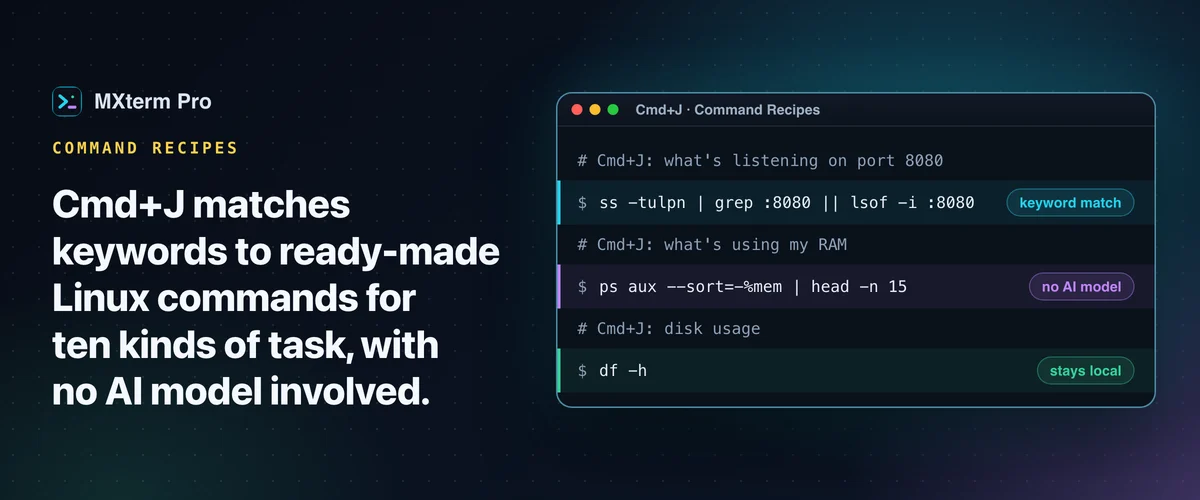
Command Recipes gives you ready-made Linux commands. In MXterm Pro, press Cmd+J on macOS (Ctrl+J on Windows, not yet verified there) and type a task in English or Vietnamese, like "find log files bigger than 50MB". Keywords are matched to 13 recipes in ten kinds of sysadmin task, and the command appears with a one-line description. No AI model is involved. Matching runs inside the app, so nothing you type leaves your computer.
What Command Recipes Actually Does
Cmd+J opens a small prompt box over your active terminal pane, local or SSH. Type a request and click Find Recipe. MXterm Pro checks it against ten built-in recipe categories and returns the highest-scoring match. The command is fixed, so nothing is written on the fly. The Command Recipes page has the overview.
The recipes are Linux commands, so they suit an SSH session to a Linux server. Many will not run in a local macOS or Windows shell.
The ten categories are big files and logs, memory/RAM, CPU load, disk space, open ports, Docker, Nginx, firewall (UFW) rules, system logs and reboot. The words apache and web server also trigger the Nginx recipe, but the command is always the Nginx one.
Here are a few examples from the built-in set. Ask to find large log files and you get find /var/log -type f -name "*.log" -size +50M -exec ls -lh {} + 2>/dev/null | sort -rh -k5 | head -n 20. Ask what's using your RAM and you get ps aux --sort=-%mem | head -n 15.
Ask about disk usage and it shows df -h, then a du -sh /* | sort -h breakdown of the biggest folders.
Ask "what's listening on port 8080" and it pulls the 8080 out of your sentence into ss -tulpn | grep :8080 || lsof -i :8080. Ask it to clean up Docker and you get docker system prune -af --volumes. Type "test nginx config" and you get nginx -t && systemctl reload nginx, which reloads Nginx as well as testing it.
The result card shows the command and its one-line description, with two buttons: Copy and Insert & Run In Terminal. The second button types the command into the focused pane and presses Enter straight away, with no second confirmation. It also copies the command to your clipboard.
Read the command before you click, especially for recipes like docker system prune -af --volumes or sudo reboot.
Who Cmd+J Is Built For
It is built for people who SSH into the same handful of servers and keep retyping (or re-Googling) the same operational one-liners. How full is the disk? What is eating memory? What is listening on this port? Is Nginx reloaded? Is anything hogging the CPU right now?
For those questions, the ten recipe categories give you ready-made Linux commands and save typing, without asking you to trust an AI model's judgment on a production box.
It is not built for describing a novel, one-off task and getting back whatever bash it implies. That is closer to what a language model does, and Command Recipes does not call one. If your prompt doesn't land in one of the ten categories, it says "No recipe matches that" instead of guessing at a command that looks plausible but might be wrong.
How Command Matching Actually Works
First your prompt is normalized: lowercased and, for Vietnamese, stripped of tone marks. So "bộ nhớ" and "bo nho" both land on the same RAM recipe. The normalized words are scored against each recipe's keyword groups, and the highest score wins. On a tie, the recipe with more keyword groups wins, then the one listed first.
Two categories, checking a specific port and opening one in the firewall, also pull a literal number out of your original sentence with a simple digit match. So "is anything using port 443" and "firewall allow 443" each carry the 443 into the command instead of returning a generic template.
"open port 443" matches the firewall recipe, because "open port" is one of its keywords. It returns ufw allow 443/tcp && ufw reload && ufw status.
This is a curated set of commands with keyword triggers, not a generative model writing bash from scratch. The tradeoff is that it can't handle a request outside its ten categories, and it matches words rather than meaning. Check what it shows before you run it.
What it can do, it does the same way every time: a fixed command, not a freshly hallucinated flag or an invented file path. The whole match runs as a local function inside the app, so Command Recipes itself makes no network request.
The Guardrail Confirmation Dialog
Separate from Command Recipes, MXterm Pro runs a guardrail check on commands typed or pasted directly into any terminal pane, local shell or SSH. It is not a risk model reading intent. It is a fixed list of known destructive shapes, checked on the Rust side: rm -rf /, rm -rf ~, rm -rf *, rm -f /, git push --force / -f, mkfs, dd if=, drop database, drop table, and the classic :(){ :|:& };: fork bomb.
When a command matches one of those, MXterm shows a Security Guardrail Interception dialog with the exact command and the matched reason. It has two buttons: Block & Cancel and Approve & Execute. Nothing reaches the shell until you pick one.
The scope is narrow: a pattern list, not an AI reviewing what a command does. A destructive command phrased differently won't trip it, and neither will a risky one outside the list, such as a bad chmod -R or an accidental > over a file you needed. Treat it as a net for a handful of catastrophic, well-known one-liners, not a substitute for reading a command before you run it.
Free vs Pro
Command Recipes works the same on Free and Pro, with no license check on it. The limits that exist are elsewhere in the app. By default Free has no pane limit and allows 5 saved SSH hosts, 2 Control Room (formerly War Room) members per room and 1 saved Machine. Pro is unlimited on all three.
Command Recipes vs Warp AI vs GitHub Copilot CLI vs Just Typing It
Warp is a terminal with real generative AI built in. A prompt goes to a cloud model, so it can answer open-ended requests, explain errors and go well beyond a fixed list of tasks. The tradeoff is that your prompt leaves your machine.
GitHub Copilot CLI is the copilot command, an agentic assistant that runs in your terminal and can suggest and explain shell commands. It replaced the older gh extension (gh copilot suggest / explain), which GitHub has deprecated. It is LLM-backed and open-ended, and each request goes to hosted models. It is a standalone CLI tool, not a terminal app with SSH, SFTP and split panes built around it.
Running ChatGPT in a split pane next to your terminal is the most open-ended option, since you talk to a full model directly. But you copy and paste each command into the pane by hand.
Cmd+J trades that open-endedness for instant, offline answers on the ten tasks people SSH in to run. It sits in the same window as your SSH/SFTP tabs, multiple terminal panes and the multi-agent Control Room. It is an alternative to keeping a separate AI terminal or browser tab open for routine ops questions, not a replacement for a general-purpose AI chat when your request is novel.
Multi-pane SSH, Command Recipes (Cmd+J), and a multi-agent Control Room (formerly War Room): free to start.
Already have MXterm Pro? Read the setup guide →
New to MXterm Pro? See pricing →
Frequently Asked Questions
No. Command matching runs entirely inside the desktop app, with no network call in that code path. What you type and the command it shows are not sent anywhere by this feature. Your SSH keys and passwords are not part of it either: SSH tabs run the system ssh, and Command Recipes never sees them.
Yes. Prompts are normalized and Vietnamese tone marks are stripped before matching, so "bộ nhớ" and "bo nho" both hit the same RAM recipe. It is currently tuned for English and Vietnamese keywords only. It is not a language model, so results in other languages depend on whether your wording happens to contain a recognized keyword.
It says "No recipe matches that" instead of guessing at a command that might be wrong. Rephrase toward disk, RAM, CPU, ports, Docker, Nginx, firewall, logs or reboot. Or try one of the quick-tip chips in the modal to see a working example.
No. Warp AI and GitHub Copilot CLI call an actual language model, so they can respond to open-ended requests. Command Recipes matches your text against a fixed set of built-in recipes in ten categories. That is narrower in scope, but it answers instantly with no network round trip.
No. Command Recipes works the same on Free and Pro, with no license check. Pro removes the saved-host, Control Room member and Machine limits.