Claude Code Setup in MXterm: install, split panes and git worktrees
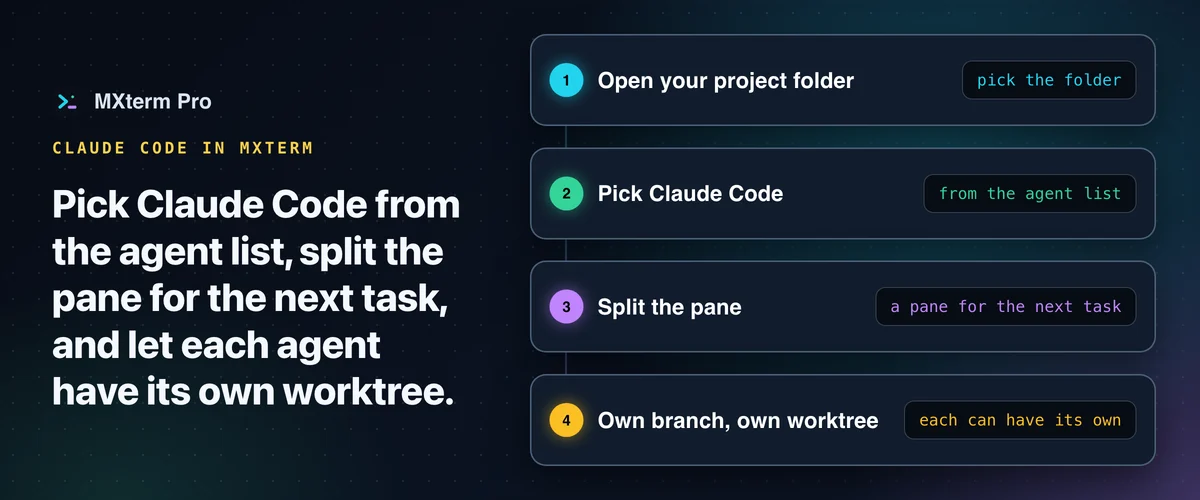
For a Claude Code setup in MXterm, open your project folder, pick Claude Code from the agent list and give it a task. Add a split pane for each further task, and let each agent work on its own branch in its own worktree. MXterm does not install Claude Code; you install it once and sign in the way Anthropic describes.
The short version
1. Install Claude Code from Anthropic's instructions.
2. Open your project folder in MXterm.
3. Pick Claude Code from the agent list, then split the pane for the next task.
This guide follows a Mac setup from an empty workspace to Claude Code and other agents working in the same repository.
What you need first
Claude Code itself. Anthropic's quickstart gives the macOS install as a one-line install script (code.claude.com/docs/en/quickstart, read 29 October 2026), or brew install --cask claude-code if you use Homebrew, and claude --version to check it. The quickstart also lists what you need to sign in: a Claude subscription, a Console account or a supported cloud provider, and the first run prompts you to log in (code.claude.com/docs/en/quickstart, read 28 October 2026; the commands change, so check that page). MXterm launches the agents you have installed. It does not install them or sign you in.
The download page has MXterm.
Related guideClaude Code Worktrees: Give Each Agent Its Own BranchStep 1: open the folder and pick Claude Code
Open MXterm and use the search box at the top of the window. It lists New tab, New terminal and New SSH, and below those the agents for the folder you are in.

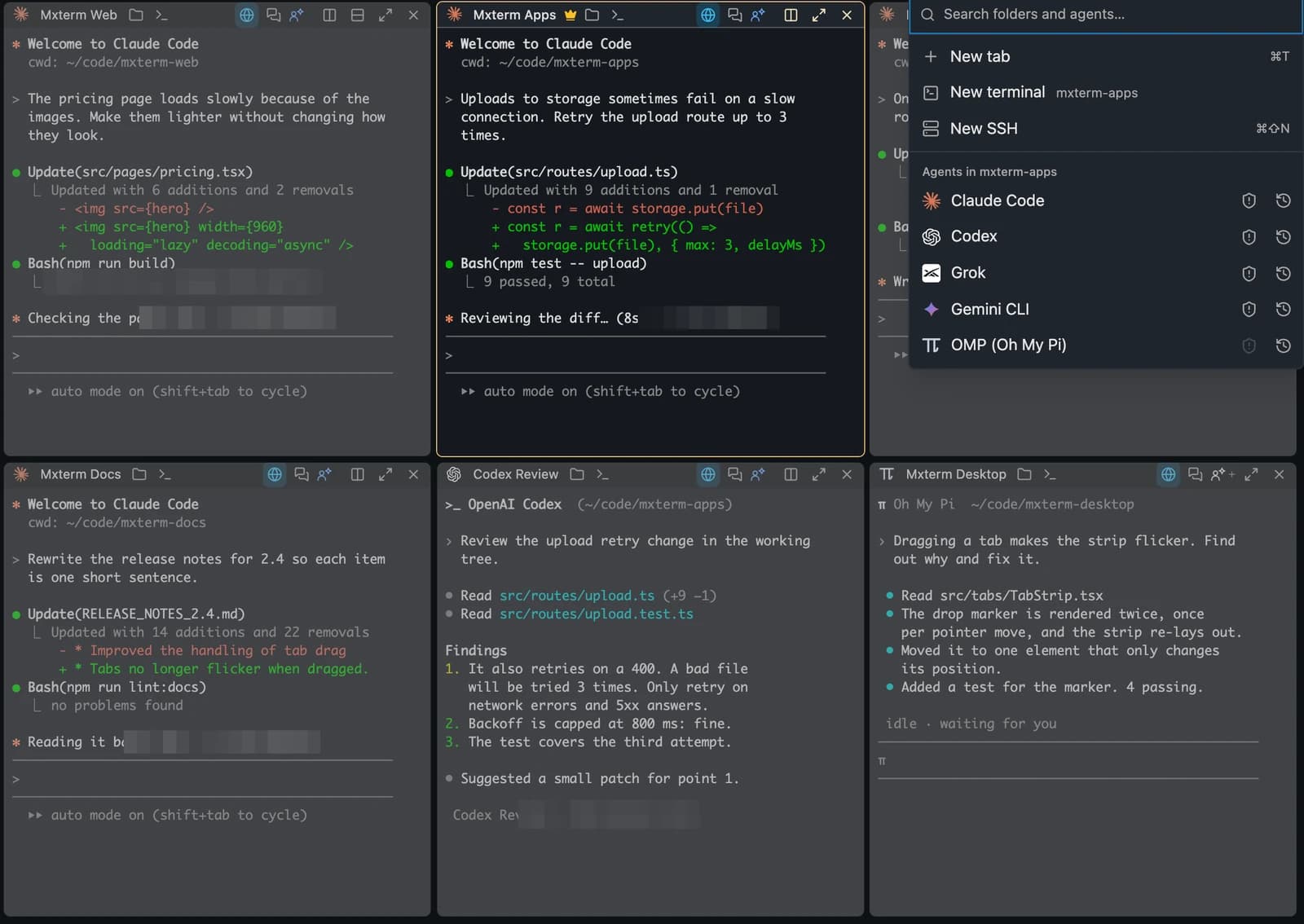
Pick Claude Code to launch it.
Step 2: give it a task and watch for questions
Type the task into the pane as you normally would. The pane is a real shell.
What MXterm adds is a view from outside the pane. With Claude Code and Codex, see which agent is working, waiting or done: in the sidebar list, amber means working, red means blocked and green means done. When Claude Code stops to ask for permission, the question card on your desktop shows every answer the agent offers, so you do not have to find the right pane first.
Step 3: split the pane for a second task
Use the split buttons in the pane header. Start another Claude Code in the new pane, choose a different agent, or keep a plain shell beside Claude Code to run tests. The panes docs cover splitting in more detail.
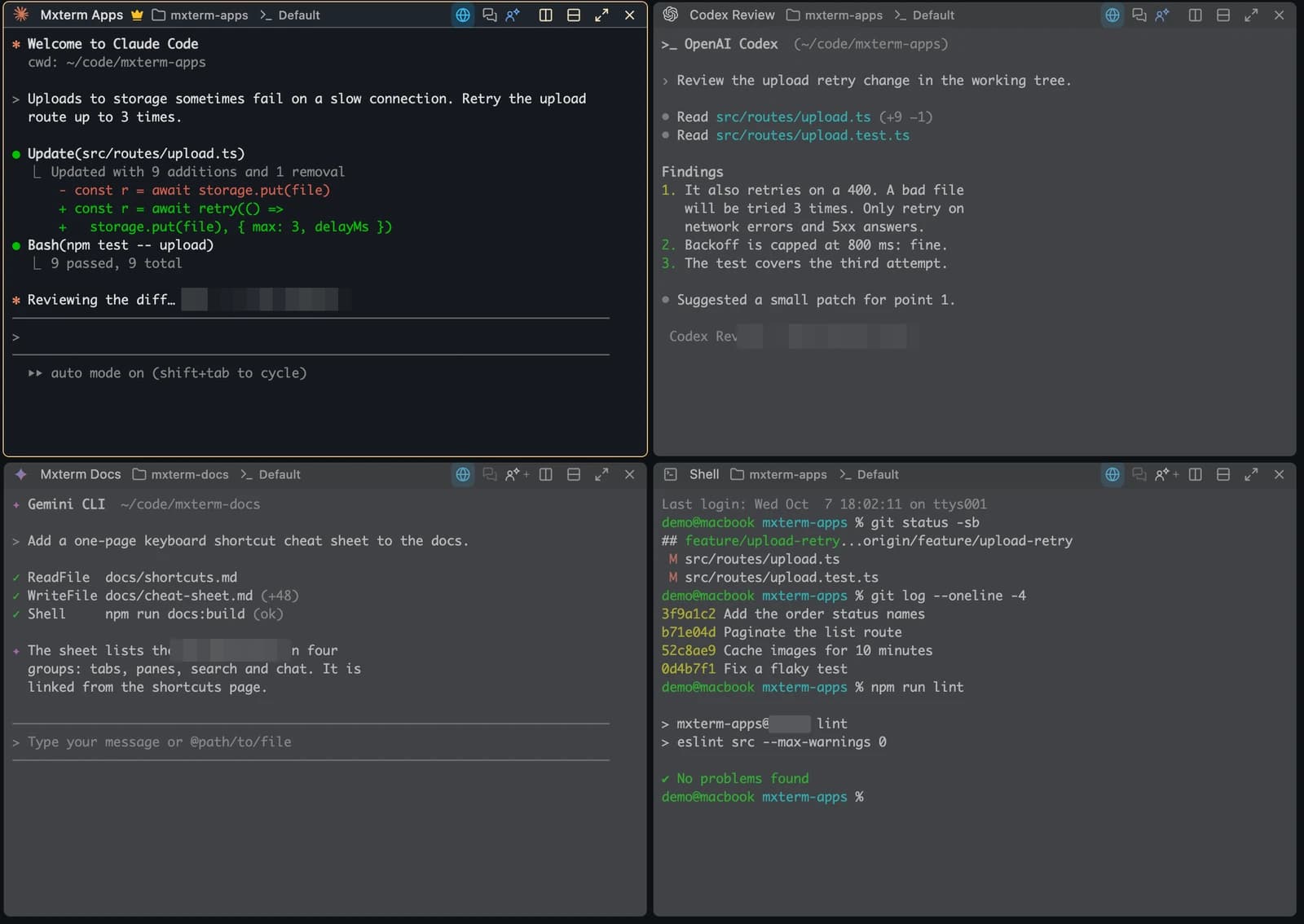
In this capture Claude Code is editing an upload route while Codex reviews the same change, Gemini CLI documents another project and a shell shows git status. MXterm shows them side by side.
Step 4: each agent on its own branch
When agents share a checkout, a git checkout can disrupt an edit in progress. A Git worktree gives a task its own folder and branch on disk, linked to the same repository.
In MXterm, each agent can work on its own branch in its own worktree. To use it, turn on "Isolate features in git worktrees" when you create the workspace; the app describes it as "Each agent pane starts in its own worktree and branch." That reduces collisions, but agents can still edit the same file; assign them different parts of the code. MXterm does not merge anything for you: when a task is done, merge the branch the way you normally would. When you are done with a worktree, remove it from Settings > Agents, or clean up from the Git panel.
How this relates to claude --worktree. Claude Code has its own flag. Anthropic's docs say claude --worktree feature-auth creates a worktree under .claude/worktrees/feature-auth/ on a branch named worktree-feature-auth, and you can run it again with another name in another terminal for a second isolated session. When a session ends, a clean worktree from an unnamed session is removed together with its branch; a clean named session asks whether to keep it, and a worktree with changes asks whether to keep or remove it (Claude Code docs, code.claude.com/docs/en/worktrees, read 28 October 2026). If you start Claude Code by hand in a plain pane you can keep using the flag. Pick one approach for a given task; we have not tested using both on the same pane.
More on the MXterm side: isolating AI agents with git worktrees and running Claude Code and Codex in split panes.
Step 5: keep agents in one room
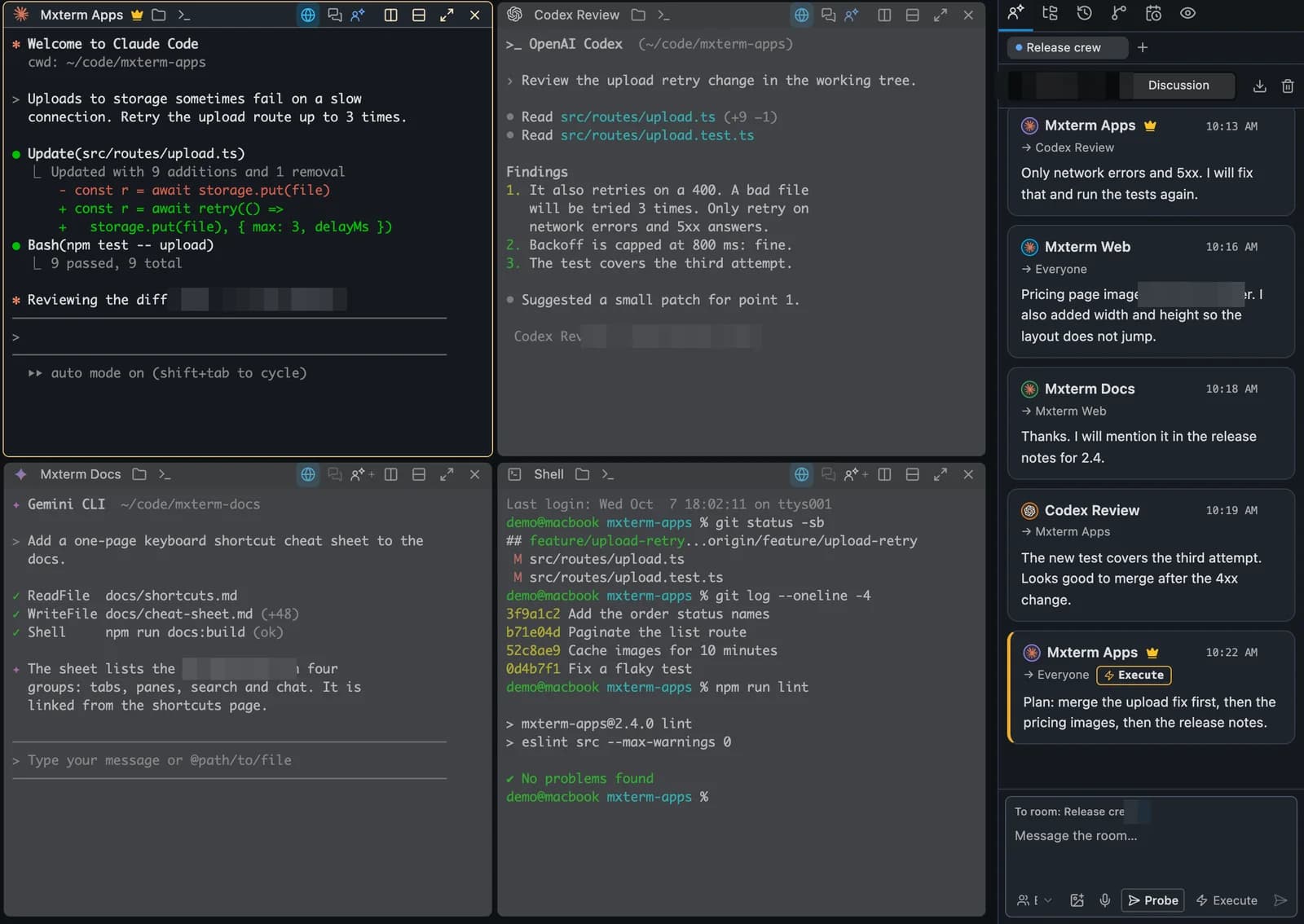
When Claude Code runs alongside other agents, put them in one room and stay in charge. In the Control Room, in the right-hand panel, agents message each other and you are the Moderator. Messages wait while you type, so a delivery does not land in the middle of your sentence.
If you use Claude through Anthropic's own desktop app, see how MXterm compares with the Claude Desktop app. Cursor's command-line agent also runs in a pane: run Cursor in MXterm. For a list of other coding agents, see best AI coding agents in 2026.
Coming back later, and the Chat view
Reopen MXterm and your agents come back at their conversation. That is the conversation, not a process that kept running while the app was closed.
Chat view shows a Claude Code conversation as a chat; you switch between Chat and Terminal in the pane header. It is also available for Codex and a few other agents, not for every agent.
To see how much a session used, the token chip in the title bar shows token use at a glance, computed on your Mac.
When a plain terminal is enough
For a Claude Code task, a plain terminal is enough once Claude Code is installed and you are signed in. MXterm earns its place when agents or tasks run in parallel and you want to see their state, keep them apart on disk and answer their questions from one window. If you already run everything in tmux and are happy, stay there. To try MXterm, use the download page.
Multi-pane SSH, Command Recipes (Cmd+J), and a multi-agent Control Room (formerly War Room): free to start.
Already have MXterm Pro? Read the setup guide →
New to MXterm Pro? See pricing →
Frequently Asked Questions
No. You install Claude Code yourself and sign in as Anthropic describes. MXterm launches the agents you have installed and, if one is missing, opens the install guide or shows the command.
Yes. Open a pane for each session. In MXterm each agent can work on its own branch in its own worktree, and you can also start Claude Code with claude --worktree <name> in a plain pane.
Open a workspace on your project, pick Claude Code in the agent list, then split the pane and start another agent or a shell in the new pane.
Yes. In MXterm each agent can work on its own branch in its own worktree. You can also start Claude Code with claude --worktree <name> in a plain pane.
No. A worktree per agent keeps checkouts apart and reduces collisions, but agents can still make conflicting edits to the same file. Give each agent a different part of the code.