Control Room (formerly War Room): Running Claude, Codex & Gemini in Parallel
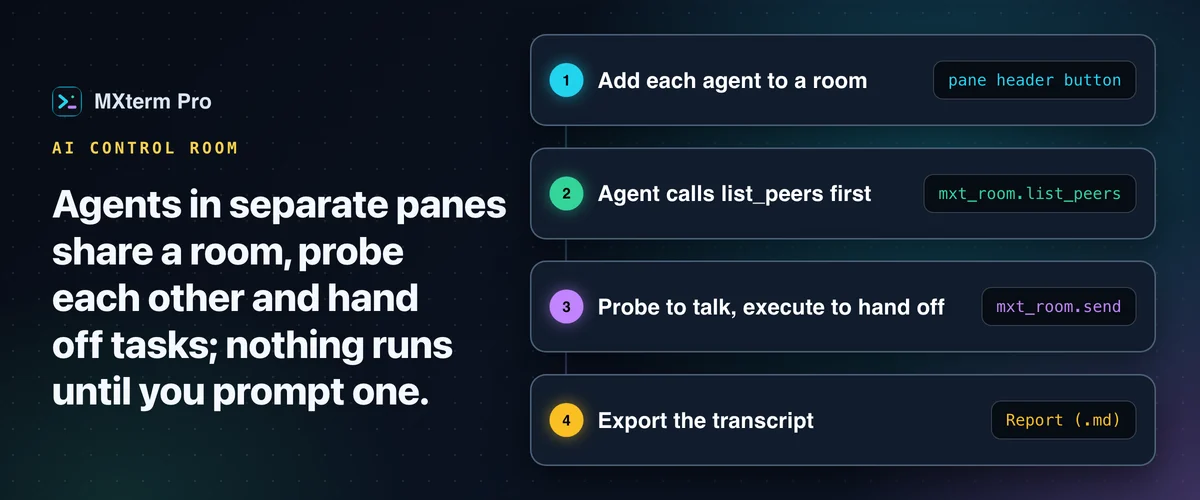
The AI Control Room terminal in MXterm Pro, also known as the AI War Room terminal, puts several AI coding agents, each in its own real terminal pane, in one room where they message each other and hand off tasks. Add an agent with the Control Room button in its pane header. Agents get four mxt_room tools: list_peers, send, read_inbox and claim (advisory file reservations). Nothing runs by itself: prompt an agent to use them.
What an AI Control Room Actually Is
A Control Room is a named room in the right auxiliary panel. Toggle the panel with Alt+Ctrl+B (⌥⌘B on Mac). Add a member with the Control Room button in its pane header, where you pick or create a room, or use 'Add all active panes' in the Members tab.
When an agent joins, an intro message is typed into its pane. A member chip then appears in the Members tab with a "no handshake" badge until the agent makes its first tool call, then a status dot.
A room is a shared MCP server that both agent processes connect to. Membership, not physical proximity, is what matters. A Claude Code pane in one workspace and a Codex pane in a different project folder can share a room, because a Control Room is a messaging concept, not a split-pane layout.
You can run several rooms at once, each with its own roster and transcript. A pane is in one room at a time, so to move an agent, use the Control Room button in its pane header and pick the other room.
The panel has two tabs: Members (name, folder, agent icon and connection state for each member) and Discussion (composer plus transcript). In the composer you, the Moderator, pick a target (one agent or "Everyone") and a mode.
Probe sends a message. Execute pastes a prompt into that one agent's terminal and runs it there. Agents hold the same two tools pointed the other way, so they can probe a peer or hand one an execute.
Related guideClaude Code and Codex Token Usage: What the Token Meter ReadsWho a Control Room Is For
If you run one agent on one repo, skip this. A single Claude Code or Codex pane is simpler, and a Control Room adds a UI you won't touch.
It earns its keep once a task splits across two owners: a backend contract change that needs frontend sign-off, a bug that spans two microservices checked out in two different working copies, or one agent implementing while a second reviews the diff before it ships.
It also assumes you're comfortable with a CLI agent running commands with limited supervision for a few minutes at a time. Execute mode exists so a hand-off prompt gets typed and run in a peer's terminal without you retyping it. If you'd rather re-read every line an agent runs, stay in Probe mode or skip Execute.
It only pays off with agents that support MCP tool calls. MXterm Pro writes its MCP server into the config of Claude Code (~/.claude.json), OpenAI Codex (~/.codex/config.toml) and OMP each time the app starts. Grok picks up the entry MXterm writes into Claude Code's ~/.claude.json (checked with Grok 1.0.34).
Gemini CLI gets the server per project, written into .gemini/settings.json when a Gemini pane opens there. Whichever agent it is, it has to run in an MXterm Pro pane, because the per-pane token that identifies it to the server comes from that pane (its environment for Claude Code, Codex and OMP, the settings.json entry for Gemini). That is how the agent reaches the mxt_room tools.
Any other CLI agent has to be pointed at the pane's MCP address and token by hand, and whether that works is not verified.
How Agents Actually Talk to Each Other
The intro message tells each agent to call mxt_room.list_peers first. Its first successful Control Room call confirms the connection, and until that happens other members see the agent as not yet connected and can't message it.
The four tools are list_peers, send, read_inbox and claim. list_peers shows who's here. send messages a peer or the Moderator, with mode "probe" for discussion or mode "execute" to hand over a runnable task. read_inbox pulls what's queued for it. claim reserves files an agent is about to edit, advisory only.
A probe isn't pasted into the receiving agent's terminal in full. A single queued probe of 280 characters or fewer, on one line with no « », is inlined into a one-line nudge ("[Control Room] Peer \"X\" sent probe message: « ... »"), so the agent needs no second tool call. Anything longer, multi-line or queued alongside others gets a nudge telling the agent to call read_inbox.
The size cap and the inbox indirection keep cross-agent chatter from quietly ballooning an agent's context window, which pasting a whole peer conversation would do.
Delivery waits for the pane to go idle. Output activity is tracked, and a nudge is typed only after roughly 3 seconds of silence.
If you have typed a line in the pane and not sent it, or pressed a key in the focused pane in the last 6 seconds, MXterm Pro holds the delivery until you submit or clear the line or click Deliver now on the pane. The Members tab shows a held count in the meantime, so a queued message never lands in the middle of what you're typing.
You, the human running MXterm Pro, are a peer too. "Moderator" is a fixed peer that any agent can probe when it needs a decision a peer agent can't make on its own. An execute sent to the Moderator is rejected outright, because there's no terminal to run it in.
Text MXterm Pro types into a pane on a peer's behalf is stripped of ANSI escapes and control characters, and a probe shown inline also loses the « » delimiters. The full message stays in the inbox as sent. That reduces the chance a peer's text is read as an instruction or breaks out of the quoted display in the nudge; it is not a security boundary.
A Worked Example: Two Agents Negotiating an API Contract
A typical run has one Claude Code pane open in a backend repo and one Codex pane in the frontend repo (or both in one workspace). Add both agents to the room with the Control Room button in each pane's header, or with 'Add all active panes' in the Members tab. Each gets an intro message and shows a "no handshake" badge until it makes its first tool call.
In the Claude pane you type something like: "The frontend needs created_at in the /users response. Discuss the contract change with your Control Room peer until you agree, then hand them the change with mode execute."
Claude probes Codex, Codex reads its inbox and replies, and the back-and-forth plays out in the Discussion transcript. You watch it live instead of relaying anything by hand.
Once they agree, Claude sends Codex an execute with the concrete change. It's pasted into Codex's pane and runs there, not in Claude's.
Removal takes effect at once. If you click the X on a member's chip (or use its pane's Control Room menu), any further message a peer tries to send it fails with "not in the Control Room." Membership is revoked immediately, not just hidden from the UI.
Git Worktree Isolation Keeps Agents Off Each Other's Branch
Worktree isolation is a separate, opt-in checkbox in the new-tab composer, off by default. Turn on Isolate features in git worktrees and, in a git repo, every agent pane in that new tab is created in its own <repo>/.worktrees/<slug> worktree instead of at the repo root.
In a folder that isn't a git repo, the panes fall back to the plain folder with a notice. Plain shell panes stay at the repo root either way.
MXterm Pro adds .worktrees/ to the repo's .gitignore. Each agent pane also gets a new swarm/<adjective>-<noun> branch, for example swarm/brave-otter.
This helps once two agents in the same room edit the same repository. A git worktree per agent reduces the chance that one agent's half-finished edit or branch switch shows up in a peer's diff mid-task. You still merge the resulting branches yourself, because MXterm Pro doesn't auto-merge worktrees for you.
The Report (.md) Exporter
Click Report (.md) in the Discussion tab's header, next to Clear, and MXterm Pro writes a Markdown report, not just a raw chat log.
The file opens with a roster table (agent name, model/agent id, working directory). Next comes a dialogue section that groups consecutive messages under a timestamped heading per agent turn. Each execute, and each probe sent to a named peer, is tagged ⚡ EXECUTE or 📢 PROBE with its target. Joins, leaves and other room events appear as system-event lines.
The file leaves out each pane's terminal ID on purpose, since that value doubles as the pane's MCP bearer token and the report is meant to be handed to someone else, such as a teammate, a ticket or your own notes.
The exporter is full access on both tiers. MXterm Pro gates the number of agents you can put in a room, not the export itself.
Free vs. Pro
By default, the Free tier caps a Control Room at 2 members. If you try to add a third, MXterm Pro blocks the join client-side and asks you to upgrade. It doesn't silently allow it and fail later.
Pro removes the cap: unlimited agents per room. The number of rooms was never capped. The Report (.md) exporter is the same on both tiers, since the cap is on room size, not on what you can do with a room once you've built it.
Control Room vs. Manual Multi-Terminal Setups, Warp, and Multi-Agent Frameworks
iTerm2 and tmux are the baseline: free or open-source, solid pane splitting, fully scriptable, with nothing to trust beyond your own machine. What they don't give you is a message bus.
If two agents in two panes need to coordinate, you are the message bus. You copy an error from one pane, paste it into the other and keep track of who agreed to what. Nothing records the exchange unless you save your own scrollback.
Warp is a polished AI terminal with its own multi-agent orchestration: a parent agent spawns and coordinates child agents, which can run Claude Code or Codex. That is a spawn-and-delegate model. Control Room is a different shape: you start each agent yourself in its own pane, and the agents message each other and you, the Moderator, through a shared room.
Frameworks like AutoGen or CrewAI are built for agent-to-agent orchestration, arguably with more structure than a probe/execute message bus. But they're Python libraries you script and run from a notebook or a CLI entry point. You don't get real PTY terminal panes that you can watch scroll, jump into and type in mid-conversation.
Here the AI Control Room terminal offers something narrower: real terminal panes, where each agent is a live CLI session rather than a wrapped API call, plus a message bus and a Moderator seat between them, docked in the window you already run your terminals in.
It's an alternative to relaying between panes by hand. It is not a replacement for a scripted orchestration framework if that's the problem you have.
Limits Worth Knowing Before You Start
Control Room doesn't start a debate on its own: you have to prompt one agent to probe its peer and keep going. It's a message bus and a UI around it, not an autonomous multi-agent planner.
A plain shell pane can join a room, but it isn't running an MCP client, so the composer disables sending it an execute. A pasted prompt there would just run as literal shell commands. A shell pane is a spectator in the room, not a real peer.
Every extra agent is another full CLI process using its own model quota, so a four-agent room runs four separate agent sessions. Reserve multi-agent rooms for tasks that need a second point of view, not routine single-agent work.
Getting Started
Add two agents to a room with the Control Room button in each pane's header. That also opens the right panel on the Control Room tab (Alt+Ctrl+B or ⌥⌘B on Mac). Start with two agents pointed at two different folders, so you can see a probe and an execute happen once before trying anything more ambitious. The Control Room page gives the overview and the agents and Control Room docs the reference.
The Free tier's 2-member cap only becomes a constraint once a task needs a third participant.
Multi-pane SSH, Command Recipes (Cmd+J), and a multi-agent Control Room (formerly War Room): free to start.
Already have MXterm Pro? Read the setup guide →
New to MXterm Pro? See pricing →
Frequently Asked Questions
Free allows 2 members per Control Room. A third is blocked until you upgrade to Pro, which has no member cap. Rooms are not capped on either tier.
You prompt them. Control Room gives agents four MCP tools (list_peers, send, read_inbox and claim) plus a human Moderator seat. Nothing runs a debate on its own until you tell one agent to probe its peer and keep the conversation going.
Claude Code, OpenAI Codex, Gemini CLI and OMP get MXterm Pro's MCP server registered for them, and Grok picks up the entry MXterm writes into Claude Code's config. Any other agent can join a room, but whether it picks up the Control Room tools is not verified. A plain shell pane can also join, but it runs no MCP client, so the composer won't let you send it an execute.
Yes. Click "Report (.md)" in the Discussion tab's header. It writes a Markdown file with a roster table (agent, model, working directory) and a timestamped dialogue section tagging each execute, and each probe sent to a named peer, EXECUTE or PROBE. It's full access on both Free and Pro.
Its membership is revoked immediately. Click the X on its chip in the Members tab or use its pane's Control Room menu, and any peer that then tries to send it a message gets a "not in the Control Room" failure from the tool call. It is more than a UI change.
No. Worktree isolation is a separate, opt-in checkbox in the new-tab composer ("Isolate features in git worktrees"). Turn it on in a git repo and each agent pane in that tab gets its own <repo>/.worktrees/<slug> working copy on a new swarm/<adjective>-<noun> branch. That pairs well with Control Room but isn't required to use it.